Designing Glossy (Web 2.0) Badges
This is a somewhat in-depth tutorial, explaining how you can make these glossy “Web 2.0″ badges in Photoshop. Firstly you’ll learn how to make the basic shape, then you can learn how to make the badge nice and glossy

1. Set up a New Document
Firstly, start by creating a new document in Photoshop, for this tutorial I’m going to be using a 400 x 400 document, but the images I’ll be showing you will usually be 300 x 200. After you’ve created a new document, create a nice background for your canvas. I used a light blue gradient and some white scan lines.

2. Making the Shape
Now let’s make the shape of the badge - in your Photoshop Tools Menu, find and get the Polygon Tool (U).
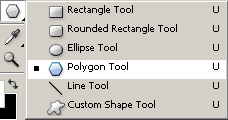
Be sure at the top of Photoshop in the tool options menu that you’re using these settings:

Click the drop down arrow that is highlighted in the above image and use these settings:
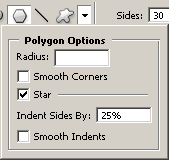
Now you’re pretty much set to create your shape, although you might want to change some of the settings so that it’s more suited to your tastes. Create a new layer (Layer > New > Layer) then drag your shape onto the canvas. The color I’ve used for my shape is #4fb2ea. You should have a badge something like this one:

Well, that’s how to make the basic shape, now move onto the next step to make it look a little nicer
3. Applying Layer Styles & Highlights
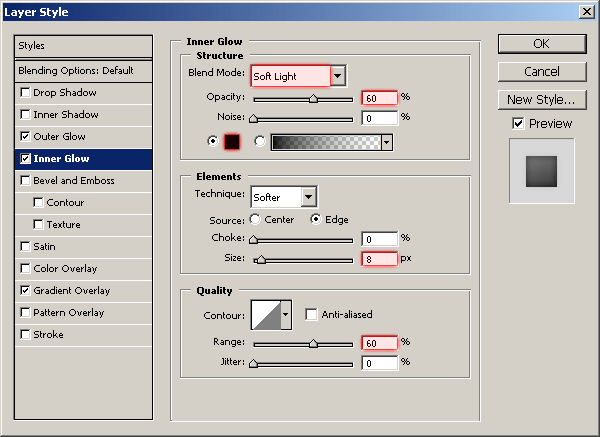
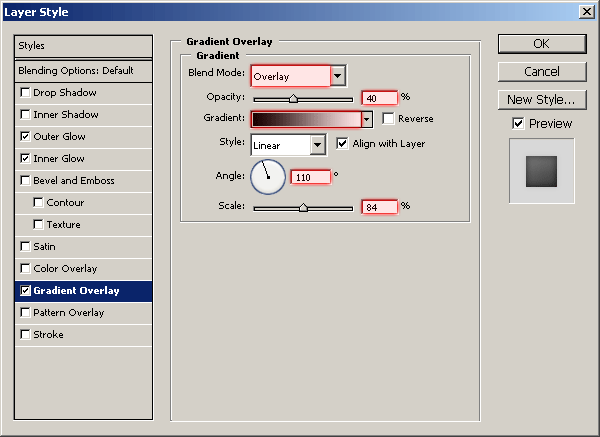
Now, in the layer’s palette, you’ll want to right-click your badge layer and go into the Blending Options. Click and apply the following layer styles/settings:
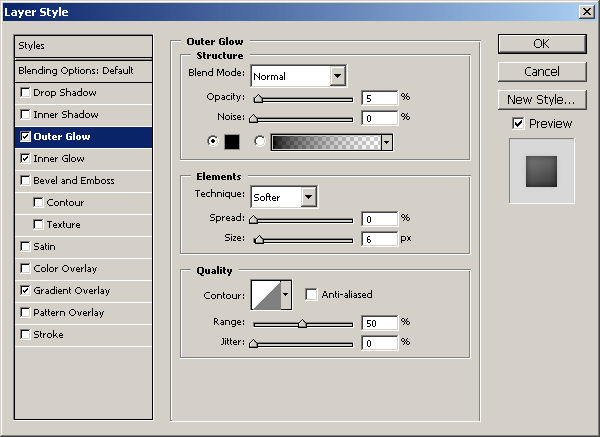
You should now have something like this:

Looking a fair bit better now. Next thing to do is add some gloss and highlights! Create a new layer then select the badge pixels by holding ctrl and clicking the layer thumbnail (in the layer’s palette)

Contract your newly-made selection by about 2 pixels by going to Select > Modify > Contract and using an input that you think fits.

Again in a new layer, fill your selection with white (#ffffff), press the down and left arrow keys once each, finally press the delete key on your keyboard, you should be left with something like this:

Now, change the layer mode for this layer to Overlay and lower the opacity if you think necesary. I lowered mine to about 70%. Make the selection around the badge layer again and contract the selection again by 2 pixels (or whatever amount you used), and on another new layer make a White to Transparent gradient from the top left to the middle area like so:

Find and get out the Polygonal Lasso Tool, and use it to make a diagonal selection from the bottom left to the top right somewhere, then delete your selection like shown below:

Change the layer mode for this layer to either Soft Light or Overlay, and lower the opacity to around 30-70%. Now you should have a nice result like this:

4. Finalizing
Looking much nicer now! Finally, you may want to add some text onto your badge, such as ‘Beta’ as the joke goes
I simply added the word “Web 2.0″ onto my badge, using a simple font like Arial. If you use white as your text color, you may want to add a blue drop shadow to your text layer.

Thanks very much for reading this tutorial! I hope you enjoyed it. If you need any help, you can of course download the PSD file from this tutorial from here: Designing Glossy “Web 2.0″ Badges PSD (93kb)
Or feel free to leave a comment.
Advertisement
Creating a good adobe tutorial site after sitting through PMI-001 or Microsoft’s 70-291, people can create sites very easily. But creating a site is only the easy bit. Finding a relevant name, hosting company and managing marketing is the real game. The name should always be relevant to the business. As for hosting, anhosting is a company that can be trusted without any questions and their dedicated servers plan is economical too. But if one must research, look for a few different things. One are they professional hosting company, two are they prices reasonable, and three what reviews say about them. Finally as for marketing, there are many marketing tools available to assist you in doing this efficiently, for instance skype phone is great for direct marketing.


61 Comments
i get confused around the part where it says:
On a new layer fill this selection with white #FFFFFF. Then press the down and left arrow keys once each. Press delete.
when i do that, theres nothing on the layer - and I can’t do the rest of the tutorial??
roraz: be sure you have the selection tool out..
Pretty Nice, But I think you should maybe use the seal tool, alot lot better.
Steven
Cool… thanks. I was able to follow it exactly…
hats up for u…!
Dude - the outer glow settings screen dump just goes to a pic of the finnished star…
How did you make those scan lines in the back?
What settings did you use for Outer Glow?
How do you make those scan lines?!?! I’ve seen them all over the web. but I have NO idea how to make them.
step 3 the outer glow link goes to the wrong image
Thanks an excellent tutorial!!
how do you make those scan lines? I can’t get them.
thanx for all, I’ve been trying several and they are just great and easy to follow.
WOW awesome technique, thanks!
Nice blog, I really like how you have the colors, and the outlook is great as well. Many people do not do this good of blogs, very good indeed, article is very mind capturing I really like it. Keep up the great work let me know when you have more done.
Nice design! Please show me how to create those scan lines. Thanks..
If you download the PSD, you’ll be able to see the “missing” settings for the Outer Glow style.
I am a new user in photoshop.That’s why many options i can’t know.If you please inform me from which site i can start, it is too much pleasure for me.I also face a problem in my pc. It is when i select the photoshop gradient in any layer then it shows gradient progress. what’s problem is there?Please inform me. Otherwise i can’t use photoshop gradient which is too much needed.
How can i select the light blue gradient and some white scan lines in gradient.
I waiting for ur response and oblige me thereby.Thanks
I think the gloss & crystal design it’s so cool, i don’t speak too much English but your tutorials are amazing and make me love all buttons and designs to make my web with those glossy shapes!!!
=)
greetings!
your shapes are exilant.pleas sent more
tutorial on my email ID.
Awsome result .
Thank you so much, I wıll use this at my site.
Amazing, thank you for this tutorial, it is really nice
very impressive……..i love ur work thnx pal!!
Excellent Tutorial!!!….I had a rush job at work today, your tutorial was very easy to follow and I completed my project on time!!….THANKS!!
looking cool, thanks and for PSD file.
Dimi
How do you do a white to transparent gradient?
wii_128:
To make a white transparent gradient, get the gradient tool then go into the preset gradients, theres one that will use the foreground color to transparent, if you know what I mean.
Useful. Thanks an great tutorial !
I would recommend using Shape Layers over a straight fill to keep things as scalable and flexible as possible. To achieve the highlight effect just use an Inner Shadow turned to White with a Normal or Overlay Blend.