

Hungry for the new design elements for your website? I have a new one for you. Hope it will be useful in your new design.
Let’s begin! Make a new document with the resolution 500×300 for this tutorial and fill this canvas with white color. Then select the Rounded Rectangle Tool (Radius: 30 px) and draw the next shape using the color of #d61d23.
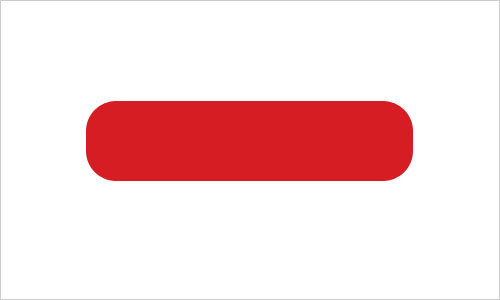
After that apply following layer styles to this layer:
• Inner Shadow
• Gradient Overlay
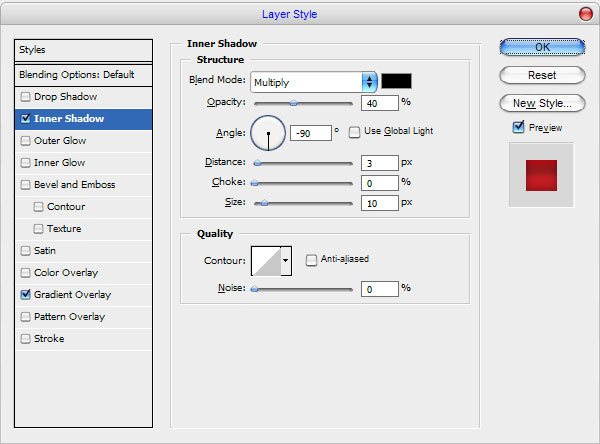
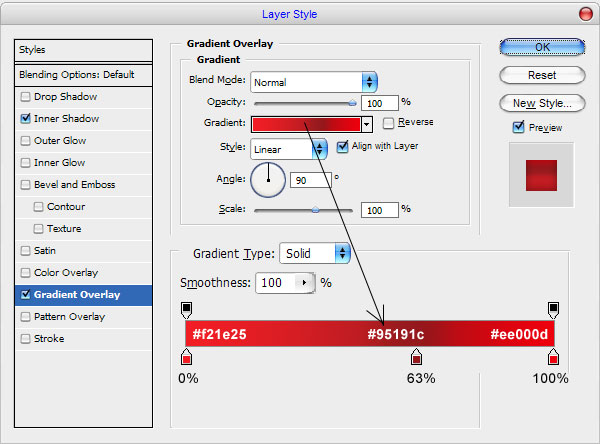
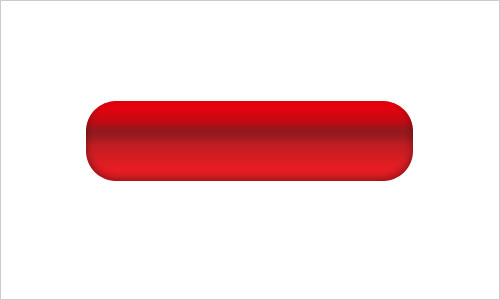
Your button should look as mine:
Now, time to bring reflection to the button. Duplicate current layer using Ctrl+J, then create a new one and flip it with copied layer to get all layer styles in one layer. After that flip it vertical with Edit > Transform > Flip Vertical as on my picture below:
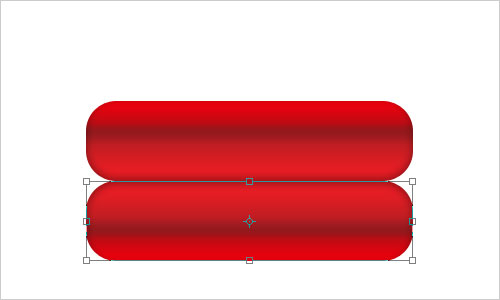
To make reflection more transparent at the bottom of the picture apply Quick Mask Mode with gradient as below:
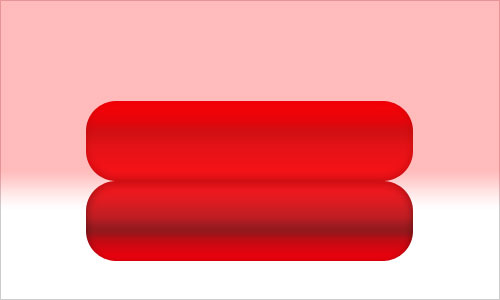
Then go back to Standard Mode. Now we have some selected area. Press Delete to clear image into the selected area.
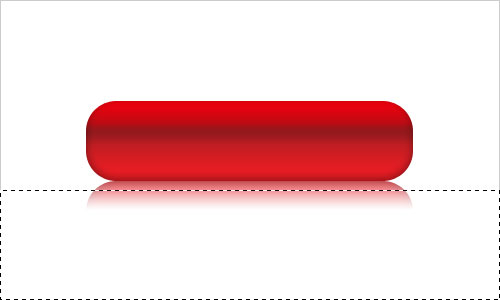
Remove selection with Ctrl+D. Go to the next step. I would like to add some glare to the button. To do this select the Rounded Rectangle Tool (Radius: 80 px) and create a new one form using white color.
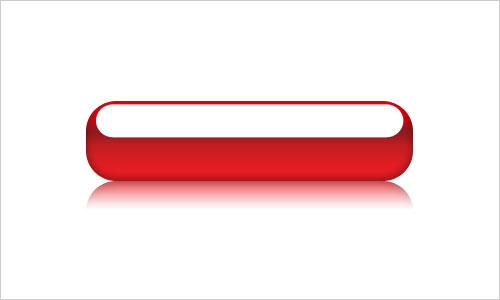
Rasterize this layer with Layer > Rasterize > Shape. After that apply Quick Mask Mode one more time and fill the next gradient:
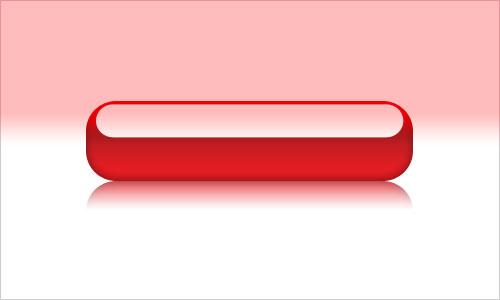
Go back to Standard Mode and we received selected area again. Press Delete to clear selected part of image.
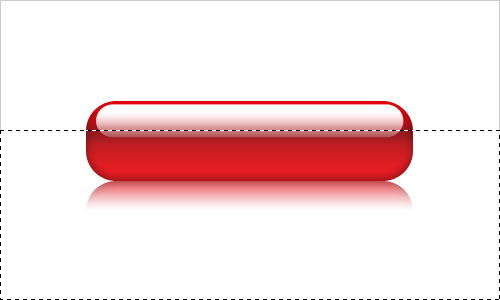
Deselect chosen area with Ctrl+D and change layer mode to Overlay for current layer.
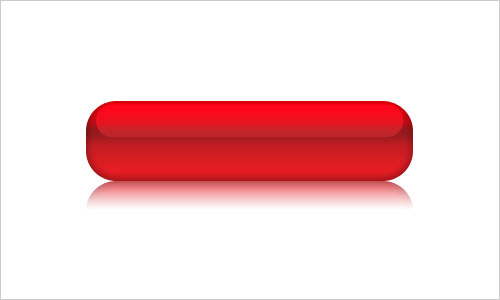
We are done with the button. Now, move to the next step. I think it will looks better when we will put some design elements on it. To do this get out the Ellipse Tool and create rounded shape as on my picture below using white color:
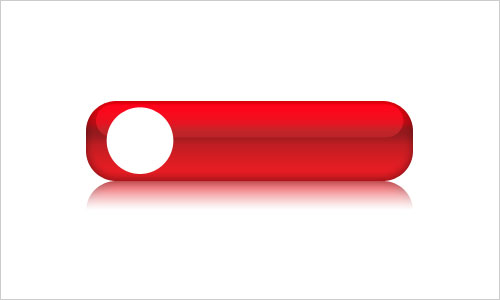
After that apply such Blending Options to this layer:
• Inner Shadow
• Inner Glow
• Gradient Overlay
• Stroke
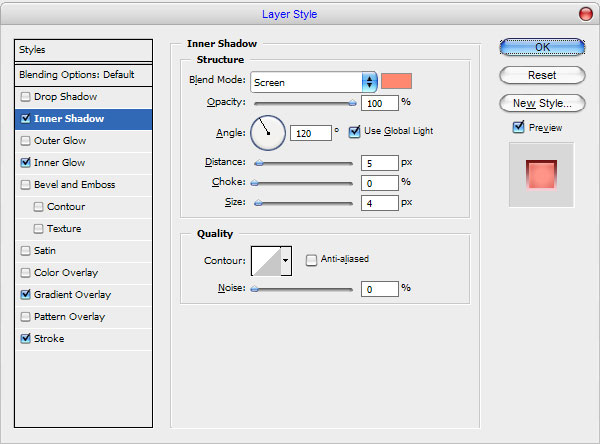
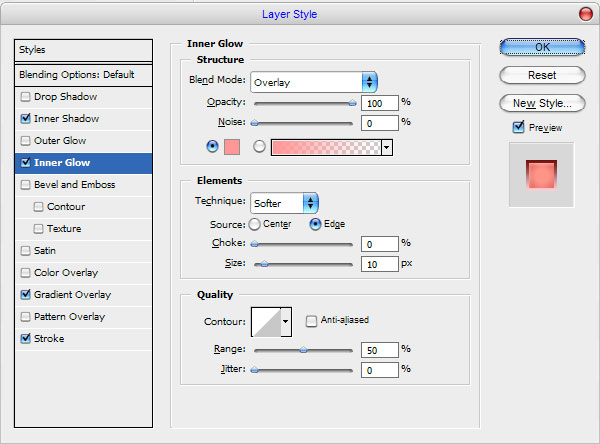
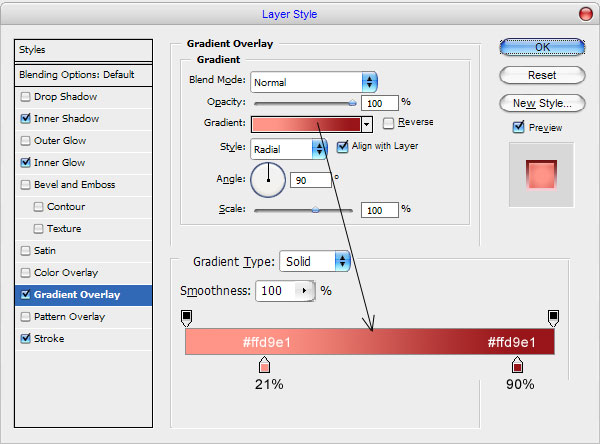
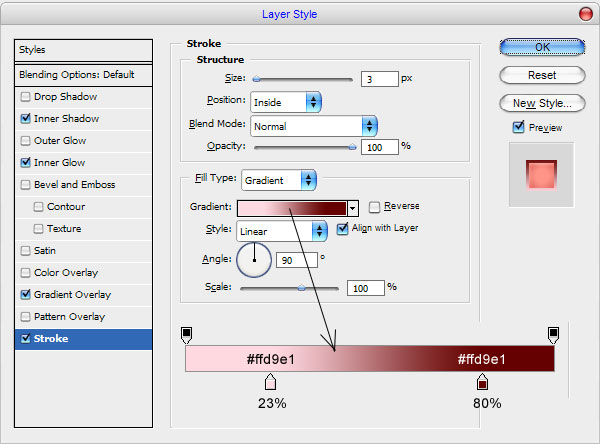
See the result below:
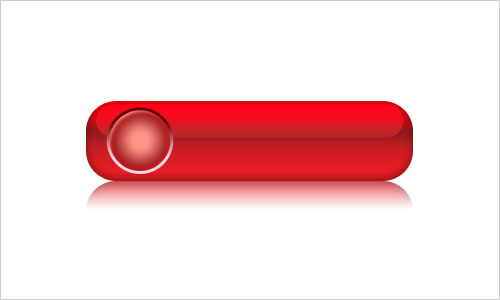
Time to bring some picture to our rounded design element. Find some picture of the Earth on the Google Images or use mine or find it somewhere. Open it and reduce a little bit, then place the picture as shown below.

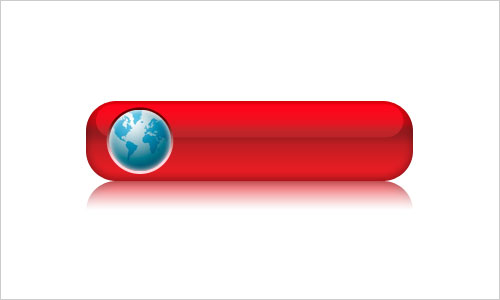
Good, then make it black and white using Image > Adjustments > Desaturate (Ctrl+Shift+U) and change layer mode to Overlay for this layer:
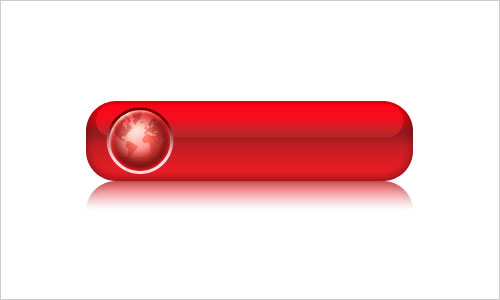
Select the Sharpen Tool (Brush: 100 px, Mode: Normal, Strength: 40%) to make this fragment more sharpen.
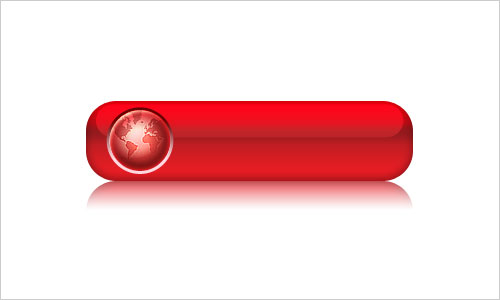
And the last one thing that we need to do. To finish off the tutorial let’s add some text. Get out the Horizontal Type Tool and write out something with white color like on my picture below.

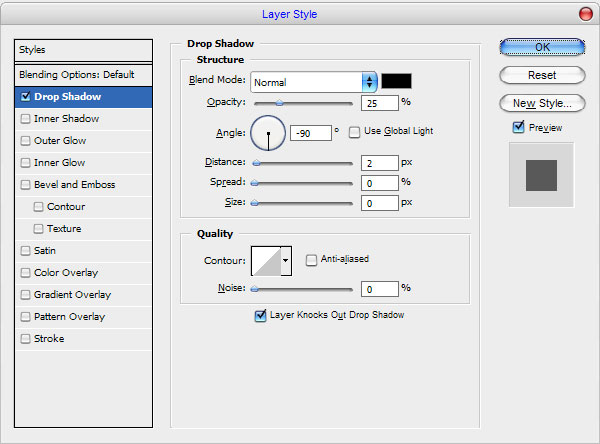
In the above image I’ve used Segoe UI as my font of choice, and I’ve used white color. Actually, it is commercial font, but if you don’t have it, you can easily find a good alternative, for example, Arial Black. After that apply the following layer style to this layer:
• Drop Shadow
Now, we have something like this.

Great! Our work is done! Enjoy your own cool globe button. Also you can change it color.