
Glossy & Shiny (Highlight) Effects


Advertisement


In this simple Photoshop tutorial we’ll be looking at a simple technique that’s quite popular at the moment. The technique is using gradients/brushes to make soft highlights/glows on things, it’s particularly popular with some styles of forum skins. You can see the end result of this tutorial below.

Glossy & Shiny Effects (Photoshop Tutorial)

1.

Start by making a new document in Photoshop – something around 800 x 600 pixels will be good for practicing. Use the default resolution (72) and default color settings (RGB).

Fill the background with a (radial) gradient of your choice. I had a hard time deciding between a dark grey gradient and a relatively dark orange/red gradient. I went with the grey gradient for this.
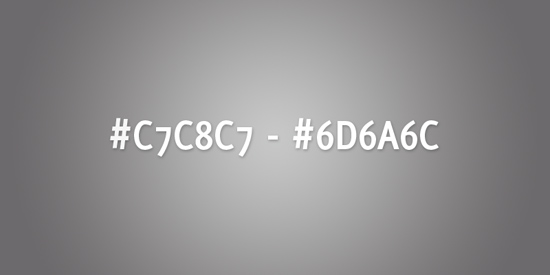
Radial Gradient + Color Hex Codes

2.

Start by finding and getting out the Pen Tool (P). Set the options to what I’ve shown in the below screenshot:
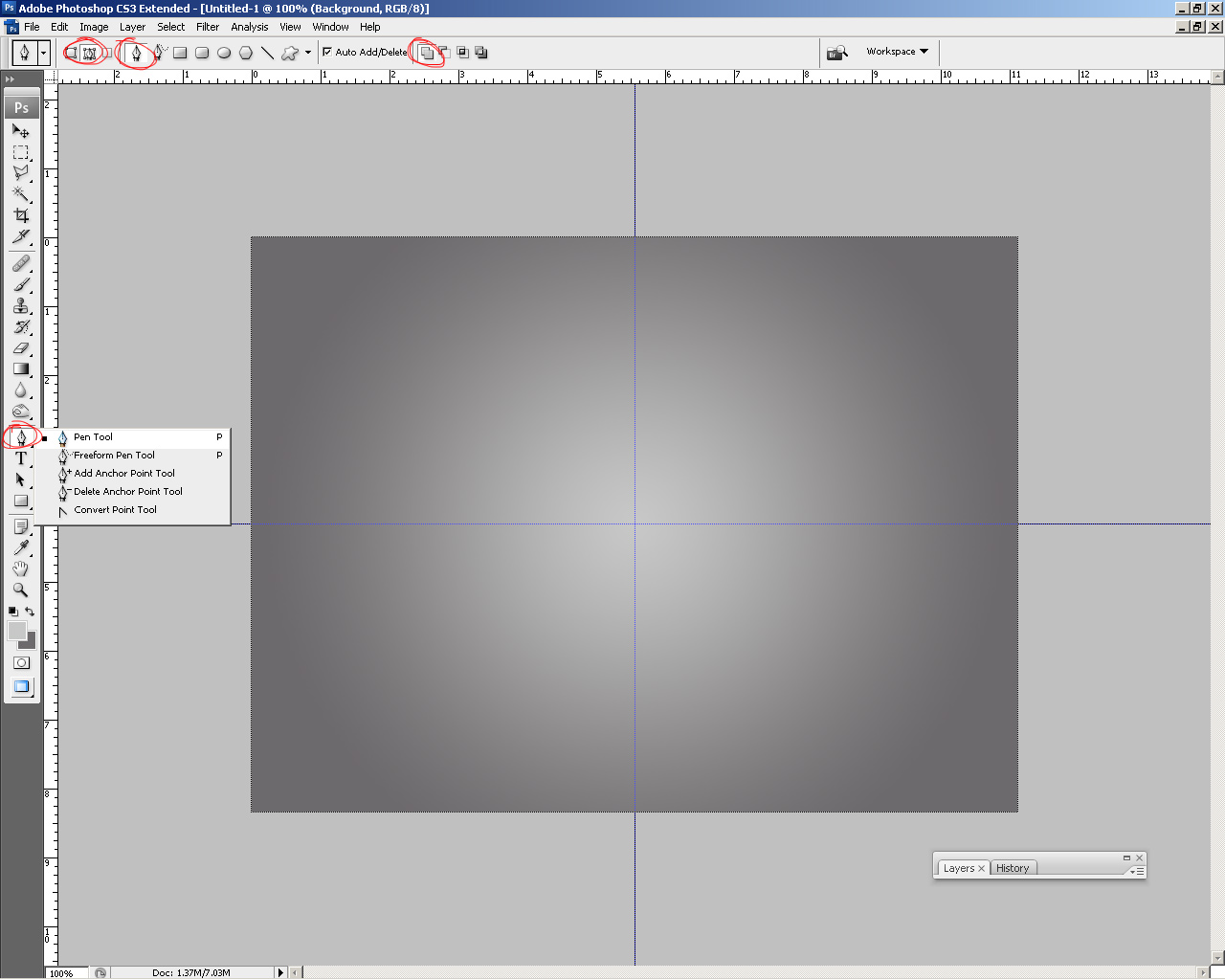
Pen Tool Screenshot + Settings

Now I’m hoping you know how to use the pen tool! All you have to do here is select the pen tool, click on the canvas, click again, drag the mouse around to make a curved path, connect the dots.

You want to come up with a smooth & curvy shape like this one:
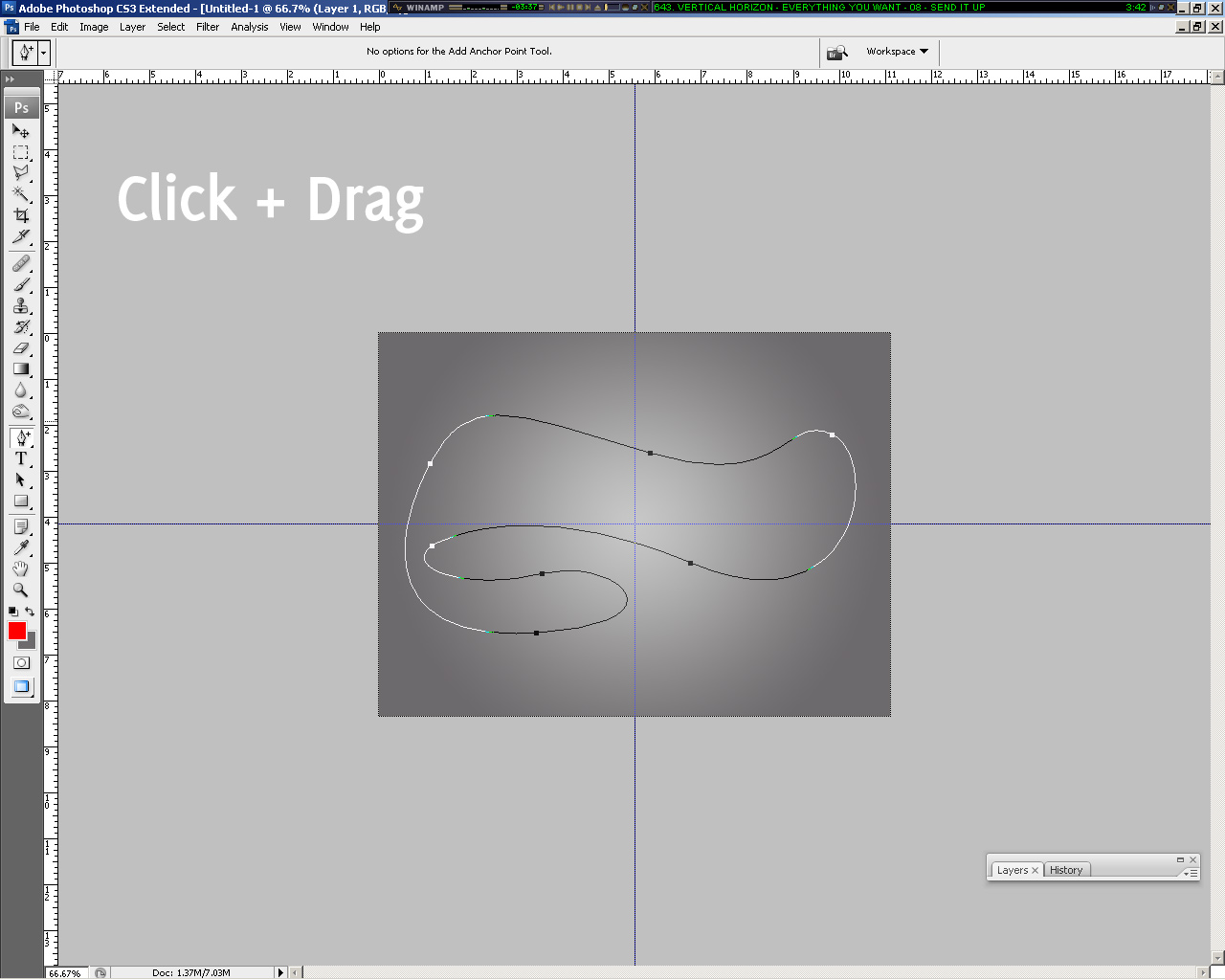
Pen Tool Path + Screenshot

3.

Making the path was the main part, now for the easy part. Once your path is complete, right-click the path with the pen tool still active, then go to make selection. After you’ve made the selection out of your path, create a new layer then get the brush tool (B) out.

Using a large, soft brush, brush inside of your selection a little bit, very lightly.

Large Soft Brushing

As you can see, I basically used a moderate grey from the background gradient, it’s fine doing this. Change the layer mode of your brushing layer to something suitable – something that looks the best, so you may need to go through all of the layer modes! I ending up using Color Dodge.

Color Dodge Layer Mode

See, much better!

4.

OK, so basically we should repeat step 2 and 3, but make the path smaller inside of our first one, then we use a layer mode that multiplies the brushing onto the background.

Darker Brushing Visible

Here are the steps that I used to achieve what’s shown below:

  1. Make a new path, inside of your first lot of brushing
  2. Make your path into a selection and softly brush inside of it (same color as before)
  3. Change the layer mode for your brushing layer mode to something like Multiply or Linear Burn

That’s all. Now it’s time to mess with different paths, shapes, brushes, and all that ;)

Subscribe

You may also want to consider subscribing to our site, to keep up-to-date!

No related posts.

Follow Photoshop Star

If you want to receive updates from PhotoshopStar, please consider subscribing our RSS feed. You can also follow us on Twitter or on our Facebook page.

If you prefer, you can also subscribe to our monthly Newsletter.

Share this Post

31 Responses to “Glossy & Shiny (Highlight) Effects”

  1. I´m liking this one, simple but stylish.

  2. Nice simple tutorial for begginers ;) good job :D

  3. good tutorial, ive been wondering how crete that effect.

  4. Cool man…it’s nice & stylish

  5. cool thanks!

  6. nice tutorial
    short and simple

  7. Can you do that on Photoshop Elements 4?

  8. Jeb: Should be able to.

  9. this is going to sound like a dumb question, but how do you get it to curve like that? when I try freeform, it comes out looking really bad :-/

  10. aparecium:
    Click once outside of the document in the window (This will start the path)
    Click in the middle somewhere, while holding the click down move your mouse downwards and toward the right or something similar, that will make it curved.
    Make sure you’ve got the right settings for the pen tool etc.

  11. NICE GOOD

  12. yenis aka chato October 28, 2006 at 2:27 am

    This is a good tutorial for begginers maine for i feel this keep postin up more tutorials this is interesting stuff…its all good ima keep coming back to do more tutorials.. ANYONE KONWS HOW TO POST UP BANNERS? LET ME KNOW THANK U =D

  13. So,i want banner in my site ;)

  14. Great template…i will use in a design ;)

    Thanks, fuser

  15. cool, nice lookin

  16. WelshAngel (student doing photoshop) January 26, 2007 at 3:42 am

    I was reccomended to use this site from my teacher. That is a cool banner, i tried it and i failed, so jealous.

  17. Cool, simple and useful for begginers.

  18. How do you get the transparent gradient like that? when i try it is a solid white selection!!

  19. Hi, Can some one explaine to me how can I do that step by step, because I can get it, my email is jamarchi@yahoo.com

    Thank you

  20. Looks nice :P Its very similar to default mac background

  21. thank you

  22. i couldn’t design because lack of description about pen:9=(

  23. I have no idea how to create curvy shape with pen, can some one explains that to me please :$

  24. thank you for sharing this, your site is full of inspiration

  25. Cool!
    I’m wondering if I can do some great smoke effects with this technique…

  26. The banner is cool

  27. mangesh chavan April 29, 2008 at 9:57 pm

    Very nice tutorial. its useful for website creaton or designing.
    thank u.

  28. Superb ;) yet yet :) everything just like that to keep ;)

  29. Thanks very much for this post, this is exactly what I was looking for, and you explain this clearly and to the point, so I am off to try it now! Cheers