Design an Awesome Band Website Template

In this intermediate Photoshop tutorial, I’m going to be teaching you how to make a really wicked, grungy-style band website template. Personally, this is one of my favorite designs/tutorials ever, so I really hope you enjoy it.
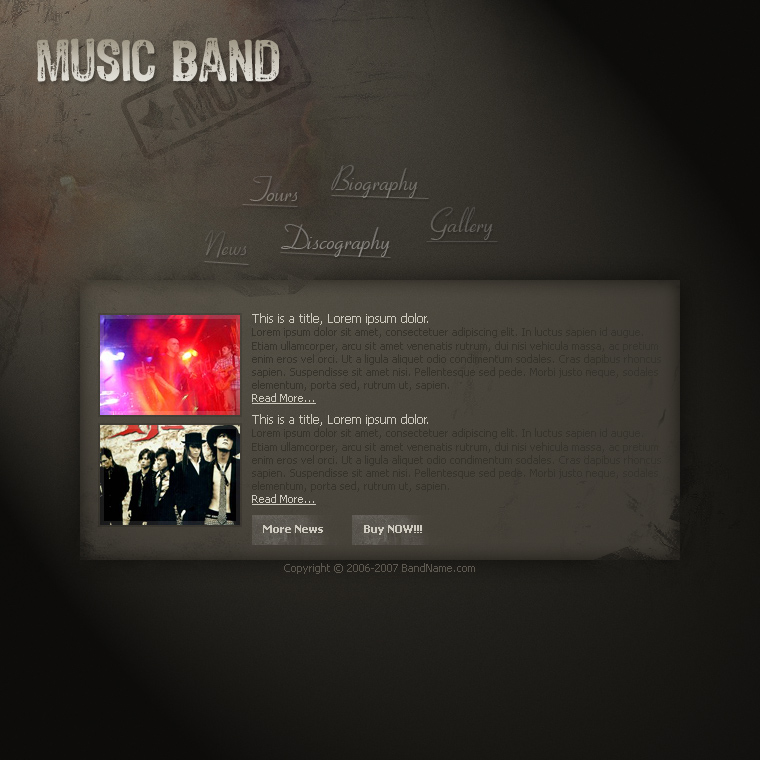
(click above image for full size)

1. Designing an Awesome Band Website Template

Obviously, the first thing we should do is create a new document. For this tutorial I’m using quite a small size of 760 x 760 pixels, you might want to use something bigger. Next thing to do is fill the background with a fairly dark color, I used a gray-brown. (#47433a)

2. Add Texture to Background

To add some texture to the background you can apple some filters or slap a grungy stock photo over the top and change the layer modes. I started off by applying the Noise filter with a low setting. (Filter > Noise > Noise, amount: 0.9)
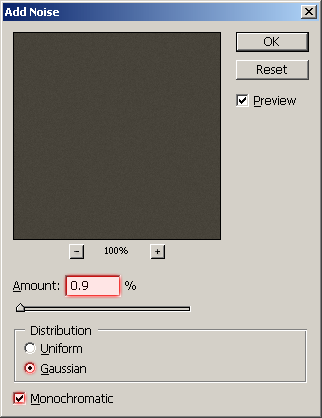
noise settings

Now we need to add in some nice and subtle details to the background. Firstly, add some grunge-brushing to the background. You can find some really awesome grunge brushes on DeviantART, courtesy of ~KeReN-R. Now you’ve got your brushes installed, pick a random one and use it a few times on the background. Change the layer mode for your grunge-brushing layer to either Soft Light or Overlay and maybe lower the opacity (something like 20-50%).

Start off with some soft grunge brushing:
Dark Grunge Brushing 1

Make a little more (remember to use different brushes):
Dark Background Grunge Brushing

Brush in different places on the background:

Dark Grunge Brushing 2

Remember to use low opacities, or change layer modes to either Overlay or Soft Light to get a good, blended effect:
Grunge Brushing Effect

You should be left with a nice grungy background something like this:

Grunge Brushes added to Background

3. Finishing off the Background – Add a few more Details

Now for the background I added a stamp brush that I made real quick. I’ve actually written a tutorial on a similar effect before, you can find it over here: Branding Iron Effect Tutorial.

grunge stamp

After I made the stamp I lowered the opacity to about 30% and changed the layer mode to Soft Light (this blends it with the background).

Lastly for the background, I merged all of the layers together (Layer > Flatten Image) then I applied the Lighting Effects Filter. (Filter > Render > Lighting Effects)
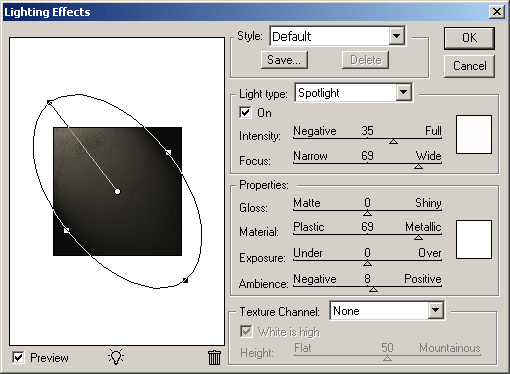
lighting effects settings

And now you should have a pretty cool background like this:

Lighting Effects Applied to Background

4. Designing the Content Section (a must!)

Every website needs a content section, so let’s make ours. Simply start by creating a rectangular box in the middle of the document. Fill your rectangle or selection with a lighter brown color than what you’ve used in the background. The color I used here was #716a5d. I then lowered the fill for my content section layer to 40% and applied the following layer styles:
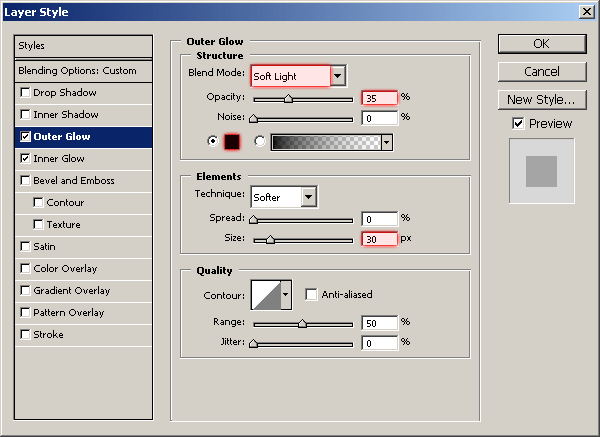
  1. Outer Glow
  2. Inner Glow

You should have something like this:

after applying layer styles

Add a layer mask to your content section (Layer > Layer Mask > Reveal All) and using a random grunge brush from the brush pack, brush a little in the layer mask using black as your color. This will remove parts of your layer, but it’s not like using the eraser, you’ll be able to edit it later on if you want to.

layer mask grunge brushing

5. Designing a Basic Text Logo

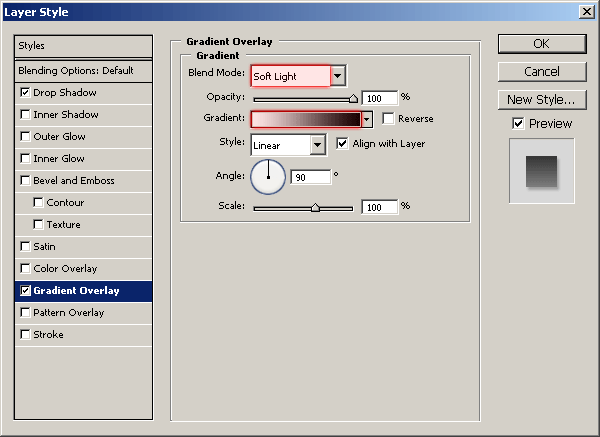
Now it’s time to give the template some life, let’s add text! Start by adding your main logo text ‘Band Name’ in the top left. For the font I’ve used a cool, grungy font called 4990810, and for the font size I used 48pt. This is a free font, so please feel free to download it from here: download 4990810 from DaFont. The color I used for my logo text was #c9c4b8, and to finish off I added these two layer style effects:
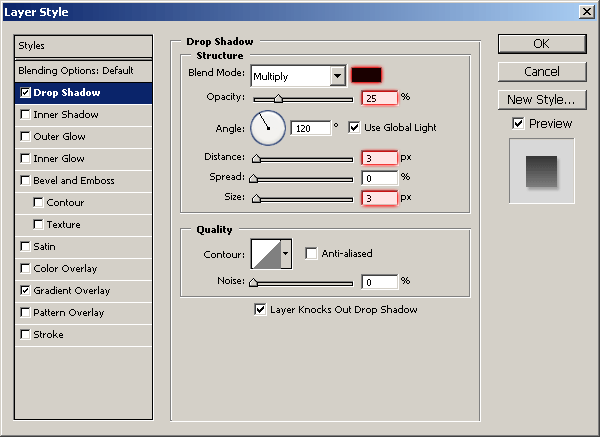
  1. Drop Shadow
  2. Gradient Overlay

And now I have this:

music band text

Not looking too bad, is it? :)

Now you can add the unnecessary but probable copyright text underneath the content area. I simply used Tahoma, 11pt, #5c584e. Don’t fret though, Tahoma comes with Windows! Another good candidate for this text is Arial, which also comes with Windows.
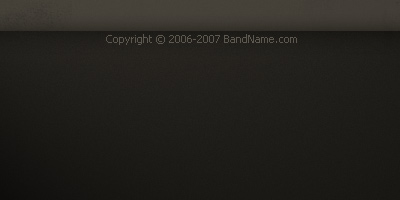
copyright text

Now, what else is a must for a website? Navigation of course! Time to add in our navigation text/buttons.

The font I’ve used here is called Cornet, but since I’m not sure it’s a commercial font or not, you might want to go to a free font website and look for a calligraphy-style font. After I wrote out my navigation text (News, Tours, Discography, Biography, Gallery,) I applied the following layer styles to the text layers:

  1. Drop Shadow
  2. Gradient Overlay

I’ve made the fill opacity for each text layer vary so it adds more detail, just a nice touch. Whatever! :P

text finished

Lastly, I added a random underline to each of the navigation items using the line tool. (it’s on the same icon as the shape tools somewhere) Just remember, these lines can be far from perfect! I finished off with the underlines by copying the layer styles from the text layers over to the underline layers. Just try and be creative in anyways possible.
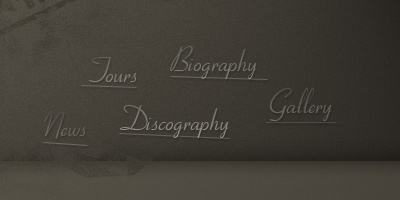
text underlines

6. Add in some Content

We’re doing pretty well so far, keep up the good work. You can see what I’ve got so far here: Band Website Design.
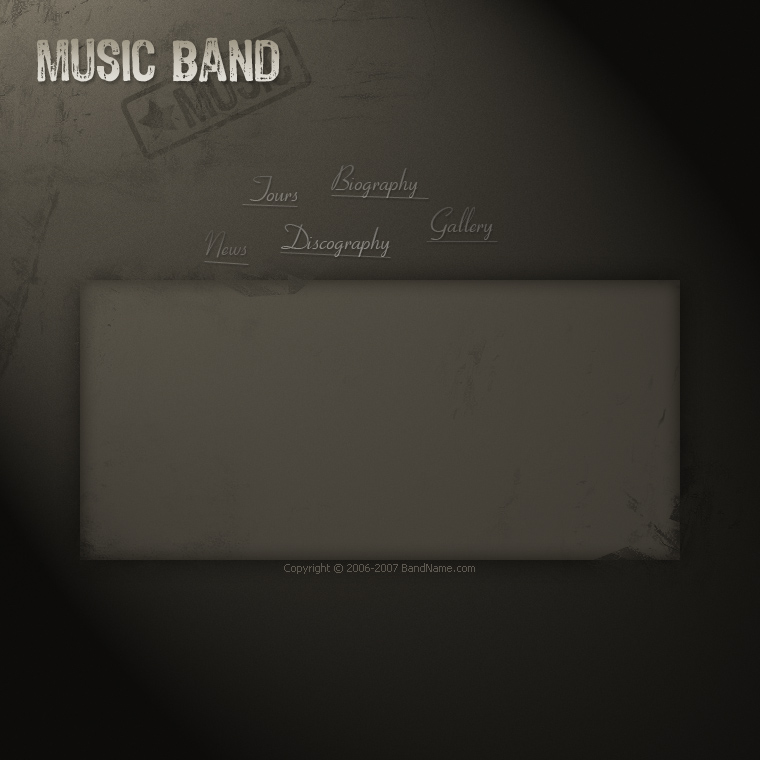
So, let’s add some dummy content. Head over to YotoPhoto and search for ‘band’ or something like that and get some cool, random stock photos. Drag them over to your canvas and resize them.

images

In the above image I’ve resized my images then cropped them to 140 x 100 pixels, I then added two borders, a 4px light border on the inside, and a 2px dark border to the outside. I finished off by adding some filler text to the right of the images. All I used here was basic ol’ Tahoma, 11pt/12pt, and light/dark brown colors.
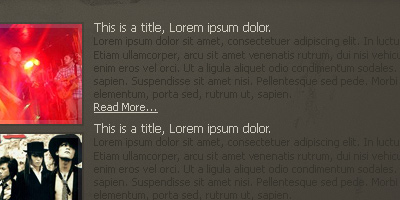
filler text

Also, for a nice small touch, I added a few light grungy buttons under the filler text. All you have to do to make these is make a white rectangle, change the layer opacity to something very low then erase away the edges.
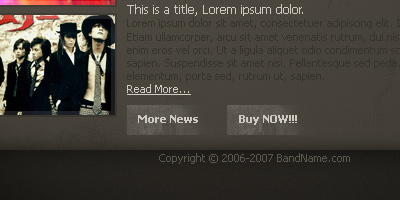
grungey buttons

7. We’re Finished! Congratulations.

So, now we’re finished. A nice final touch, in my opinion, would be to add some photos in the top left then blend them in a little bit. (blend them in for example by using the eraser tool, then changing the layer modes/opacities)

Thanks very much for reading guys (and girls, of course!) I hope you enjoyed this tutorial! (one of my favorite to date)

Now, would you like to download the PSD file? Well, you can, but you have to promise not to steal it! You can use the PSD file for learning purposes only. Download Band Website Tutorial PSD (3.7mb)

Return home. Published Oct 27th, 2006 under Website Design.
Previous Random Next
Digg Delicious Reddit Float Stumble

You must be logged in to post a comment.

40 responses

Slama said:October 27th, 2006

Thz)

XeroTrinity said:October 29th, 2006

Love Dir en Grey!
Oh ya… Great lookin template also, nice tutorial.

Killerbee said:October 31st, 2006

Wow, thats a realy cool tut :D

dubD said:October 31st, 2006

That is one heck’of’a nice tutorial. I love the end result. Keep up good work. Hope to see more tutorials from you. ; )

Zach said:November 7th, 2006

lookings good on gt

kolot182 said:November 9th, 2006

nice tutorial! like it so much! tnx!

MrBigGuns said:December 4th, 2006

Love the template but I still don’t know how you did the Stamp?

Talon said:December 12th, 2006

Very good tutorial!

cutie137 said:December 24th, 2006

how do you code this layout?

Jody Cleveland said:December 27th, 2006

Hello,

Thank you for this excellent tutorial!! It really is outstanding.

The only part I have a question on is the ‘Music’ stamp with star. I noticed there’s a layer in the psd file for it, but it’s darker than the final version of it up above. So, I’m wondering what needs to be done to get that to match the final version of it above. (I want to change the word music to something else) You’ve got a link to the tutorial, but it goes to a web page that’s down. Does this part of the tutorial exist elsewhere?

Thanks again for a great tutorial!!

thd said:January 2nd, 2007

how do you code this layout? i can’t figure out how to get it into html, the links especially.

ZET said:January 3rd, 2007

@ thd

the easiest way to do it would be to use an image map, and use the co-ordinates/pixel numbers of the links e.g. news, tours etc. For example:

ZET said:January 3rd, 2007

body
img src=”bands.gif” usemap=”#green” border=”0″
map name=”green”
area shape=”polygon” coords=”19,44,45,11,87,37,82,76,49,98″ href=”http://www.bands.com/news.html”
area shape=”rect” coords=”128,132,241,179″ href=”http://www.bands.com/biography.html”
area shape=”circle” coords=”68,211,35″ href=”http://www.bands.com/tours.html”
/map
/body

did not know how to put correct syntax in e.g. “” as post comment will not allow this.

xyyrus said:January 4th, 2007

Hey..a relly gr8 tutorial…but i cant figure out how to make that stamp cuz the link provided goes to a site which is out-of-order. So please can u send a link where this tutorial is available?

Disco said:January 14th, 2007

i tried this tutorial with great results thnx

Quir said:January 23rd, 2007

Code the website?
Just slice it with the slice tool in photoschop ( the pen ),
then hit file -> safe for the web and use images & html
Then you have it sliced & in a html file

at said:February 3rd, 2007

Nice tutorial! Thanks for sharing.

iftakhar rasheed awab said:April 16th, 2007

good job mate by the way check my work it on free server but it aint free dudes.check it up you wont be disoppointed by me.Keep up the good work.Thanks

Brage said:June 18th, 2007

Damn good Tutorial, man!
Really useful

nyan said:June 18th, 2007

That great Tutorial
Very useful

bogy said:June 19th, 2007

thanks

Jeff said:June 19th, 2007

Nice work Eli

nicky said:July 12th, 2007

hey…gr8 work….after downloading the grunge brushes …i couldnt seem too find were they are in photoshop…could you help

Ozonew4mWebmaster said:July 17th, 2007

Hi.. cool blog.. I was wondering if you would consider allowing me to add your blog feed to my news section on my webmaster website . I realise that not all of your posts are strictly webmaster related but ive written a script to only show posts containing certain keywords so theres no need to worry. Anyway, like i said.. cool blog.. some interesting stuff.. thanks

trixum said:August 17th, 2007

gud and thxz 4 shring

Makayla Edwards said:August 27th, 2007

Well done!

Nevaeh Pinto said:August 28th, 2007

Great work!

French Guy said:September 24th, 2007

Wow… really interesting Tutorial.
Good Job, Thx.

billys said:October 26th, 2007

fantastic!!didnt know it was that simple to create nice looking backgrounds for websites!million tnx!

raed said:December 25th, 2007

like it so much!

Abhorson said:January 21st, 2008

Great overall, though the top navigation, as a scripted font, is a little awkward.

@XeroTrinity… Merry, not Dir en Grey. Oh wow…

Carlos Gouveia said:March 7th, 2008

Use slices dude! Slice the whole thing and the File -> Save for web

media said:April 20th, 2008

Good work! Thank’s

Serkan Kandemir said:May 3rd, 2008

Tebrikler, Hepsi güzel…
Thank you, good all…
:) ))

leandro said:July 9th, 2008

very cool website ideas thanxs

neil said:July 14th, 2008

brilliant tutorial – clearly very skilled and a lovely website design for a site

jen2007 said:November 4th, 2009

Nice band website design! I was wondering how to make a design for a hosted band website on resoundspot and I guess I will make a background image similar to your design.

Iscoandco said:February 2nd, 2010

Thank you!
: )

Trackbacks

  1. 27 Best Photoshop Web Layout Design Tutorials to Design Decent Web Layouts
  2. 27 Best Photoshop Web Layout Design Tutorials to Design Decent Web Layouts