
Learn to Create Party Text Effect


Advertisement


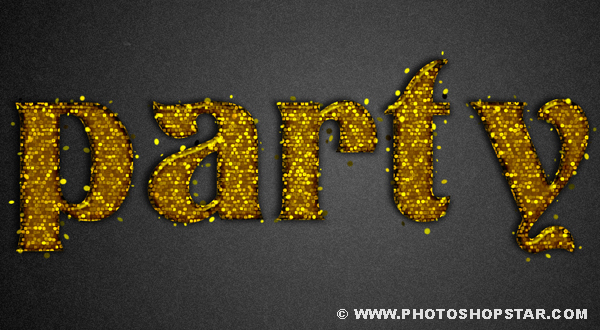
This tutorial explains how to use Photoshop layer styles, filters, and brushes to create an awesome sparkly text effect.

Final Image Preview
Learn to Create Party Text Effect

Step 1

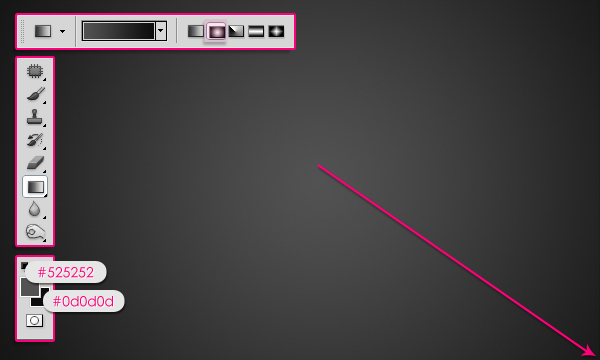
Create a new document that is 1350 x 1000 px. Set the Foreground color to #525252, and the Background color to #0d0d0d. Create a Radial Gradient from the center of the document to one of it corners making sure that you selected Foreground to Background gradient preset.
Learn to Create Party Text Effect b1

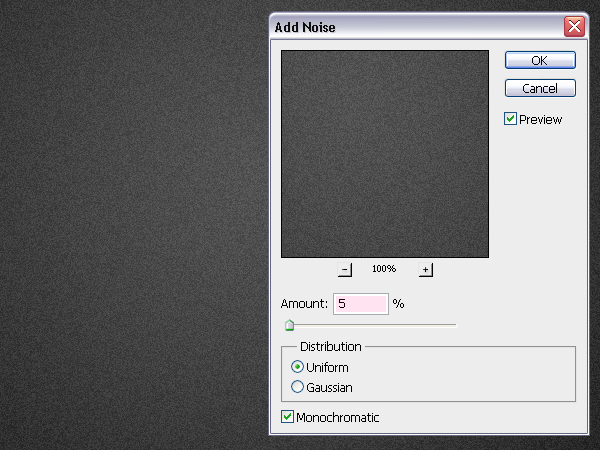
Go to Filter > Noise > Add Noise. Set the Amount to 5, the Distribution to Uniform, and check the Monochromatic box.
Learn to Create Party Text Effect b2

Step 2

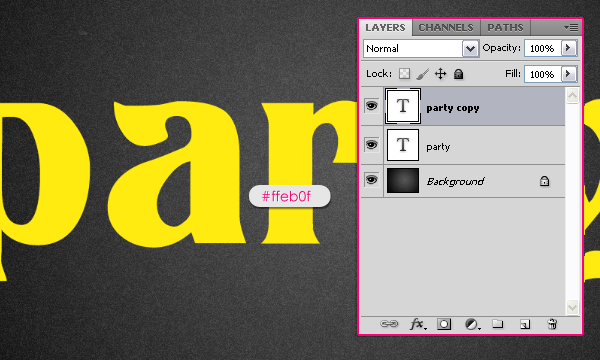
Create the text using the color #ffeb0f. The font used is Titania and the size is 377px. Duplicate the text layer so you have two copies.
Learn to Create Party Text Effect 1

Double click on the copy text layer (the one on the top) to apply the following styles:

- Drop Shadow: Change the color to #383838, and the Size to 10.
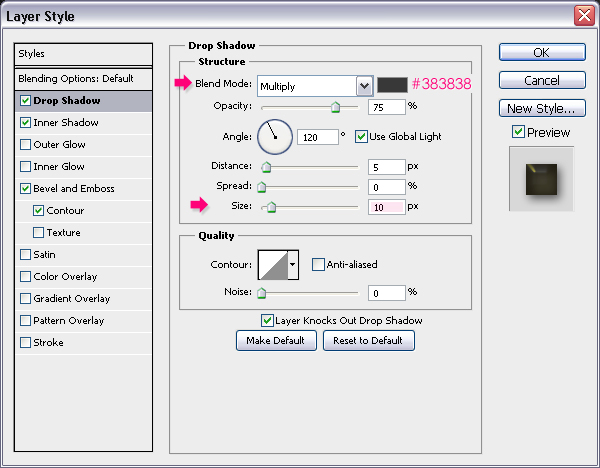
Learn to Create Party Text Effect 2

- Inner Shadow: Change the color to #625841, the Size to 13, and the Contour to Half Round.
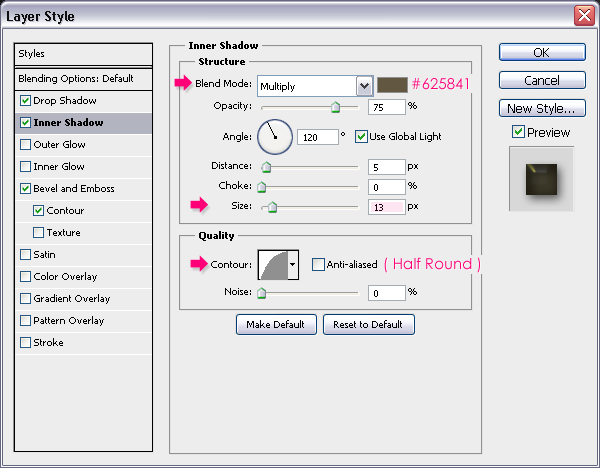
Learn to Create Party Text Effect 3

- Bevel and Emboss: Change the Depth to 450, the Size to 10, the Gloss Contour to Log, and check the Anti-aliased box. Also, change the Highlight Mode color to #fff119, and the Shadow Mode color to #8a7b3e.
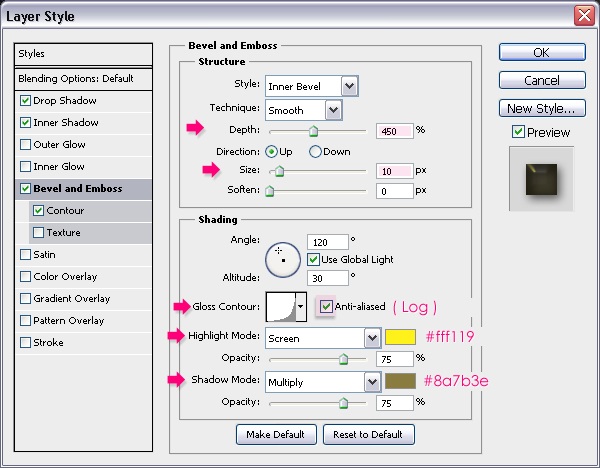
Learn to Create Party Text Effect 4

- Contour: Just check the Anti-aliased box
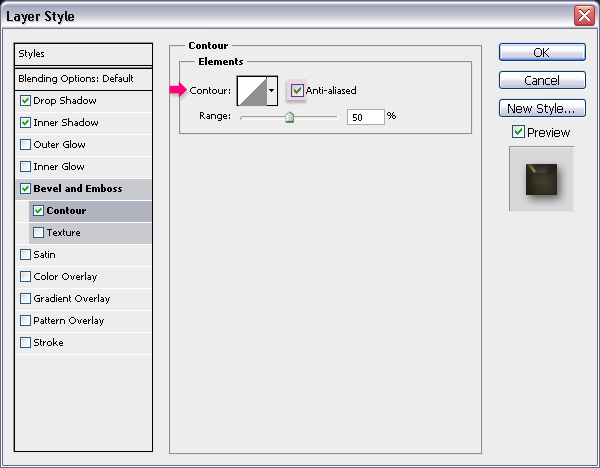
Learn to Create Party Text Effect 5

This is what the text should look like:
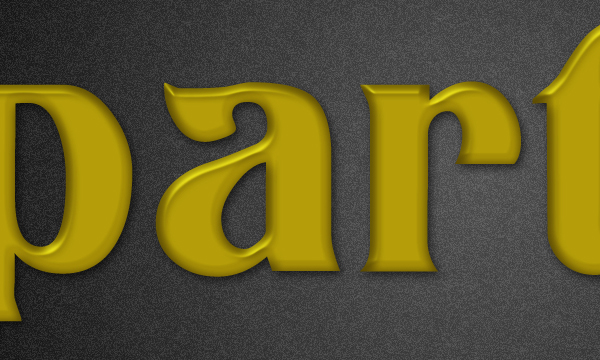
Learn to Create Party Text Effect 6

Step 3

Press the Ctrl/Command key, and while still pressing, click on the text layer thumbnail (icon) to create a selection.
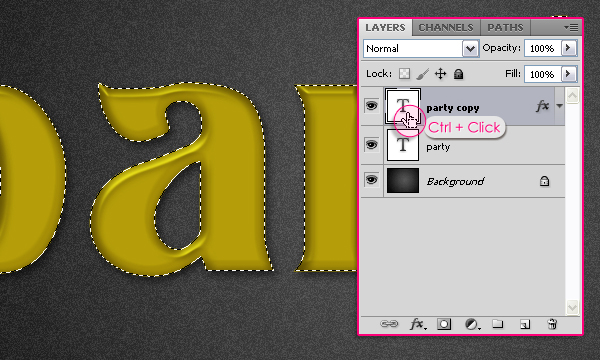
Learn to Create Party Text Effect 7

Set the Foreground color to #7d6905 and the Background color to #d3c614. Create a new layer on top of all layers and call it “texture”. Fill the selection with the Foreground color, and press Ctrl/Command + D to get rid of the selection.
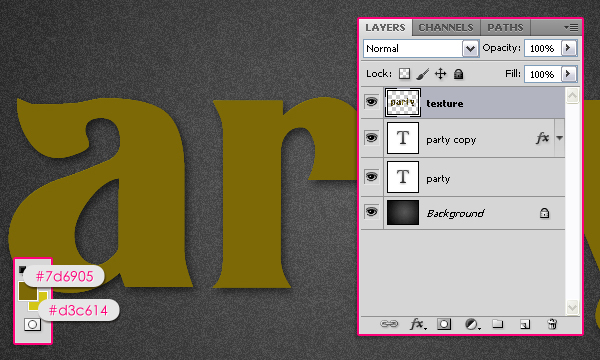
Learn to Create Party Text Effect 8

Step 4

Now, we are going to use a couple of filters to create the sparkly texture. Start by going to Filter > Sketch > Notepaper. Change the Image Balance to 25, the Graininess to 10, and the Relief to 11.
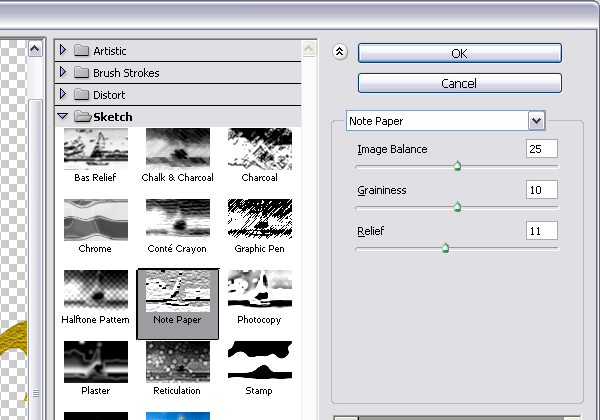
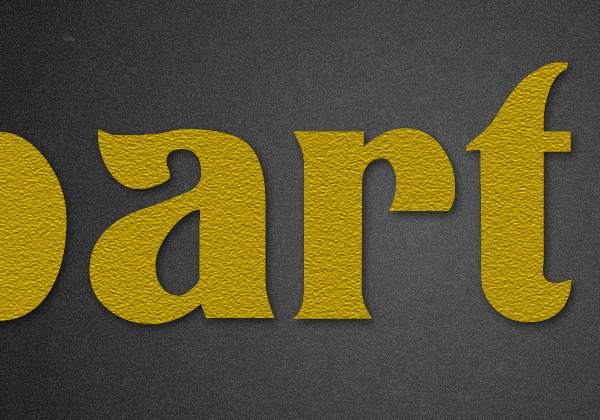
Learn to Create Party Text Effect 9

Learn to Create Party Text Effect 10

Go to Filter > Texture > Stained Glass. Change the Cell Size to 2, the Border Thickness to 4, and the Light Intensity to 1. The Light Intensity property adds brightness to the center of the texture, so you can increase the value if you want more brightness in the center.
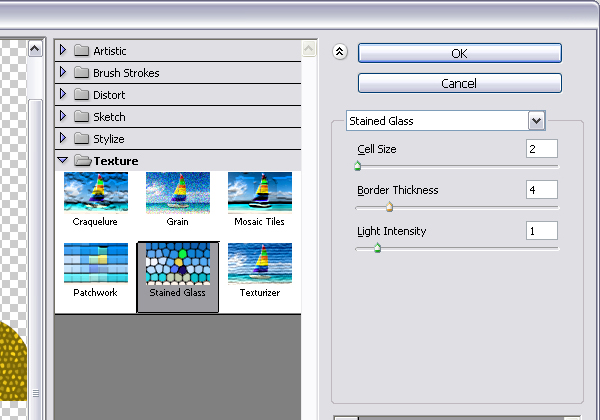

Learn to Create Party Text Effect 11

Learn to Create Party Text Effect 12

Finally, go to Filter > Stylize > Glowing Edges. Change the Egde Width to 2, the Edge Brightness to 10, and the Smoothness to 5.
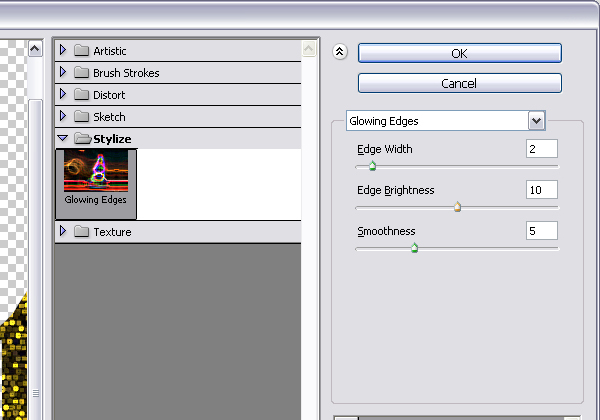
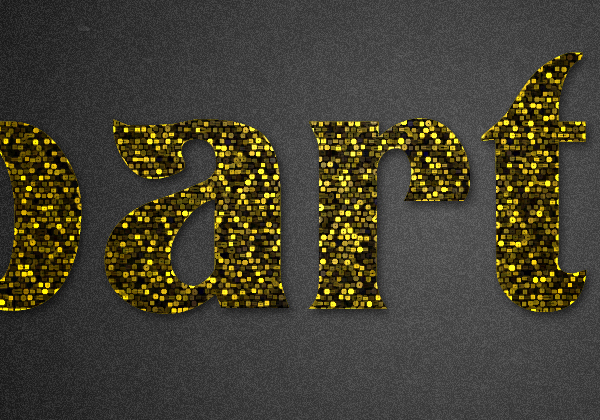
Learn to Create Party Text Effect 13

Learn to Create Party Text Effect 14

Change the “texture” layer’s Blend Mode to Overlay.
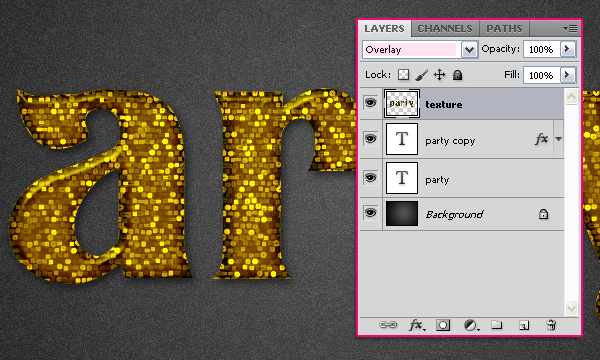
Learn to Create Party Text Effect 15

That’s it for the text effect. Next, we’re going to add some sparkles using the Brush tool.

Step 5

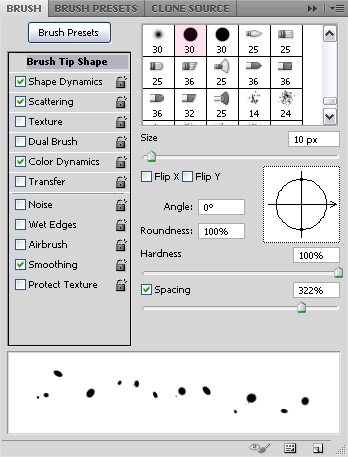
Open the Brush panel (Window > Brush), and choose a hard round brush. Change the size to 10px, and set the Spacing to something around 322%.
Learn to Create Party Text Effect 16

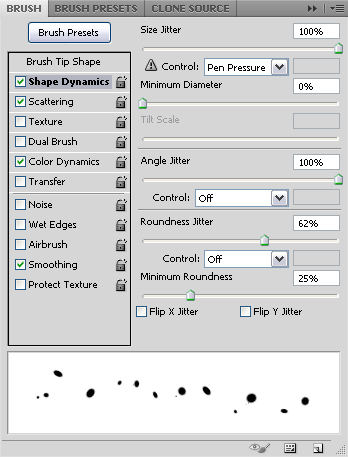
Under Shape Dynamics, change the Size Jitter to 100%, the Roundness Jitter to 62%, and the Minimum Roundness to 25%.
Learn to Create Party Text Effect 17

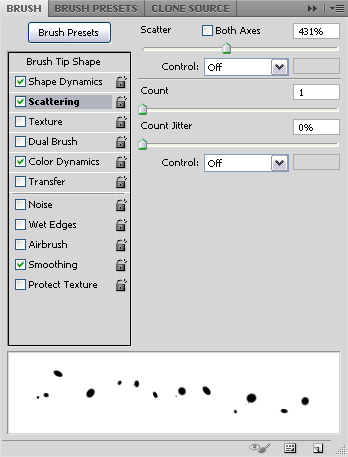
Under Scattering, Change the Scatter value to 431%.
Learn to Create Party Text Effect 18

Finally, under Color Dynamics, change the Foreground/Background Jitter to 100%, and the Brightness Jitter to 50%. This will give the sparkles different brightness and color values.
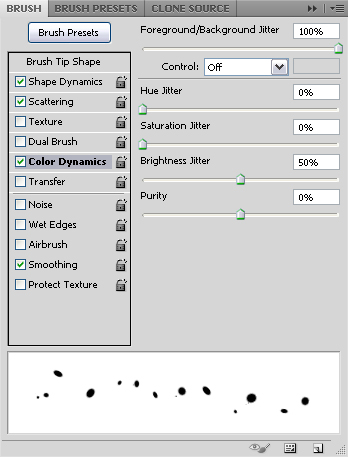
Learn to Create Party Text Effect 19

Step 6

Right click on the text layer, and choose Create Work Path.
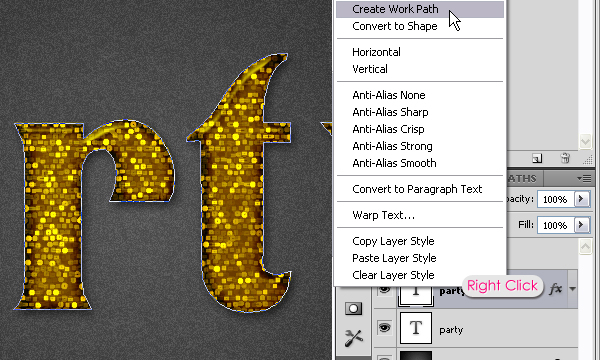
Learn to Create Party Text Effect 20

Make the color #d3c614 the Foreground color, and change the Background color to #ffff08. Create a new layer on top of all layers and call it “sparkles”, and grab the Direct Selection Tool.
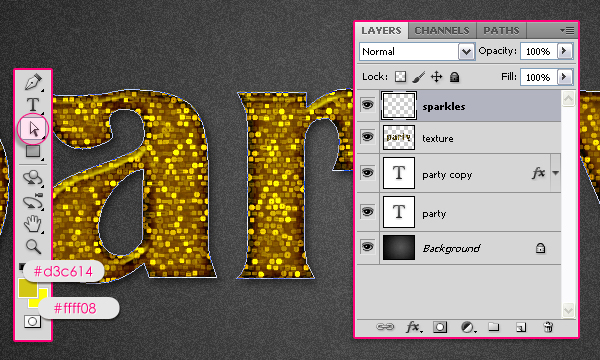
Learn to Create Party Text Effect 21

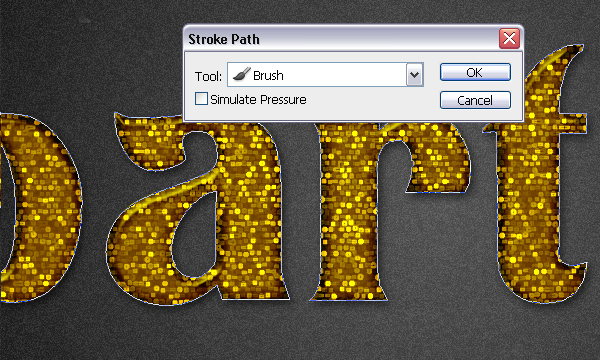
Right click on the path, and choose Stroke Path.
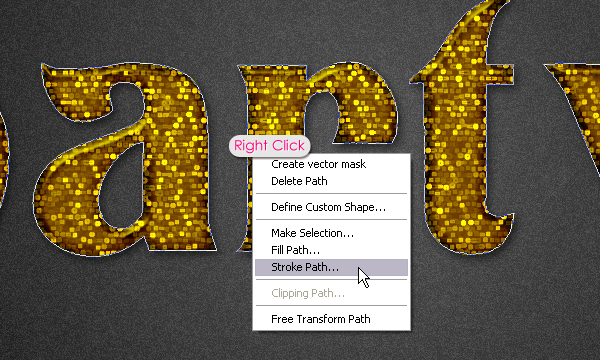
Learn to Create Party Text Effect 22

Choose Brush from the Tool drop down menu, and make sure the Simulate Pressure box is un-checked.
Learn to Create Party Text Effect 23

This will stroke the path with the brush you’ve just created.

Learn to Create Party Text Effect 24

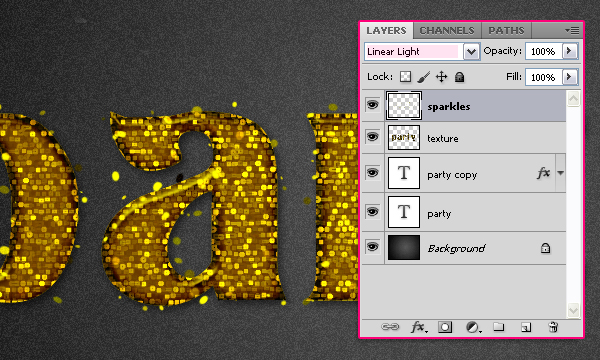
Change the “sparkles” layer’s Blend Mode to Linear Light.
Learn to Create Party Text Effect 25

Step 7

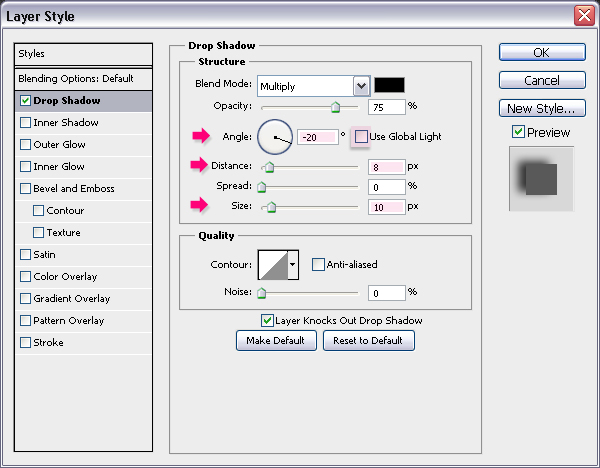
The last thing we’re going to do is add more shadow to the text, so that it blends more with the background, and has more depth. To do that, Double click on the original (bottom) text layer, un-check the Use Global Light box (as we want to change the direction of the shadow), and change the Angle to -20. Also, change the Distance to 8, and the Size to 10.
Learn to Create Party Text Effect 26

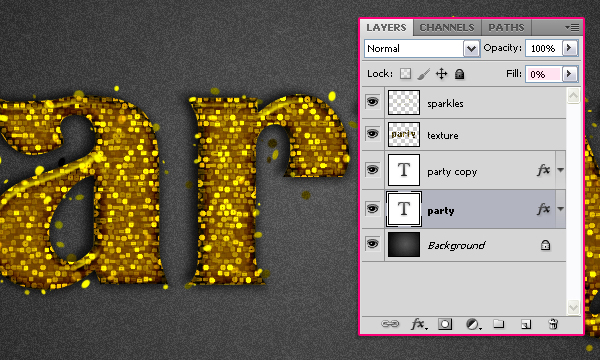
Change the Fill value of the original text layer to 0, so that only the shadow is visible.
Learn to Create Party Text Effect 27

Final Image

Learn to Create Party Text Effect

Related posts

Follow Photoshop Star

If you want to receive updates from PhotoshopStar, please consider subscribing our RSS feed. You can also follow us on Twitter or on our Facebook page.

If you prefer, you can also subscribe to our monthly Newsletter.

Share this Post

54 Responses to “Learn to Create Party Text Effect”

  1. it is nice

  2. I like it, thank’s alot :)

  3. it’s so cool….i’m gonna try it..

  4. Great tut. I’ve especially liked how you use brush stroke. thanks

  5. Thanks a lot for this nice tutorial. Very Cool effect!

  6. I don’t know how to create work path. Please help.

    • Hello Prince,
      Check out Step 6, you just need to right click on the text layer and choose “Create Work Path”, and a work path will be created.
      Hope this helps.

  7. thanks this is fantastic…:D

  8. Wow that looks really good. I’m definitely going to use this.

  9. Thanks everyone for the nice comments :)

  10. I cannot select sketch or texture in my filters drop down menu…Can you please advise

  11. hi…im in Step 4…. my sketch filter is unavilable????? plz help

    • Make sure that the “texture” layer is active (selected). This also could happen if the image is in 16bit, instead of 8bit format, as not all filters work on 16-Bit images. The same goes for the CMYK mode, you need to be in the RGB one.

      Hope this helps.

  12. very nice and simple tut. thanks a lot!!!

  13. Cool tutorial
    Thanks

  14. Love it! Great effect, well done!

  15. Hi I got the problem in step6.I am not able to create workpath.please help me.

    • hi on right clicking i am getting layer properties, blending options etc but i am not able to get as shown above.can u help me please?
      I am wating for u reply

      • Hi,
        So, you can’t find “Create Work Path” at all? (It will be down the list as the screenshot only shows the part where this option appears, which means that the top part of the actual menu is cut.)
        Make sure you right click on the “text” layer not one of the other layers.

        Also, if you can find the option “Create Work Path” but no path appears when you click it, you might need to go to View -> Show -> Target Path.

        Hope this helps. If the problem still exists, please provide more details so that I can understand what the problem exactly is.

  16. very nice

  17. very nice.i like it thanks a lot for this nice tutorial.

  18. This effect is amazing !! =]

  19. its really nice….

  20. Pretty neat, but why didn’t you use a layer mask for any of your steps? That would make changing what the text reads a lot easier.

    • Hello Alex,

      Layer Masks are definitely an effective tool, but I thought I’d keep the tutorial simple and basic.

      Thanks for pointing that out anyway, and for the comment as well.

  21. Hi,
    Why cant i use the filter gallery when it reach to Step 4?? The layer i couldn’t use filter of sketch.

  22. i trying that but i messing shadow to the text, plz help me?

  23. cool man,thx to learn my!

  24. i really want to make this as back ground please some 1 help .

  25. Hi, I started to create the strass effect with a vector drawing I have do before and I’m blocked at the step 6 to “create work path”, I can’t do this and I’m research for a solution … Can you help me please ?

    • Hello Nouille,
      Do you mean a “shape”? I don’t exactly get what a “vector drawing” refers to. If it is a shape, you can’t create a work path. if it’s not a shape, can you please clarify the problem a bit more?

  26. When I click in “create work path”…
    Show this: Could not complete your request because the type layer uses a faux bold style.

    Please help me…

  27. why is my work path don’t work like what it did in this tutorial? I followed the instruction but the path doesn’t follow the brush presets.

    its frustrating.

  28. It would great to see this as a video tutorial.

  29. its really awesome dude

  30. Wow it’s wonderful, and easy !

    thanks a lot for sharing !

  31. Incredible. Joss.

  32. it looks absolutely beautiful!

  33. Hi I really nice done with you work . Great !
    And I also try with the another color.

  34. I don’t have LOG contour in my PS CS5. Isn’t it a default contour?

  35. Wow i am impressed

  36. cant understand the ctrl/commanD + D..? CAN YOU EXPLAIN WHAT CAN I DO WITH THIS?

  37. Thanks for the easy tut. Great text effect!

  38. super cool… thank you :)

  39. when i open that brush at step 5 then is everything locked, how do i unlock it

  40. I’ve finished it but my sparkles is not bright enough like yours pls i need the reply fast