Displaced Text


Advertisement


Displaced Text

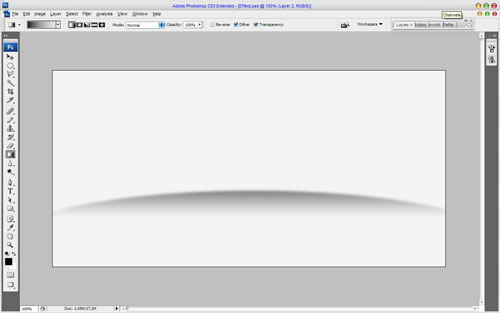
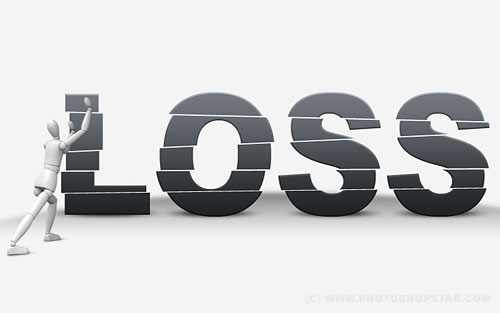
In this Photoshop tutorial I would like to show you creative way how to displace the text and get an interesting effect on it.

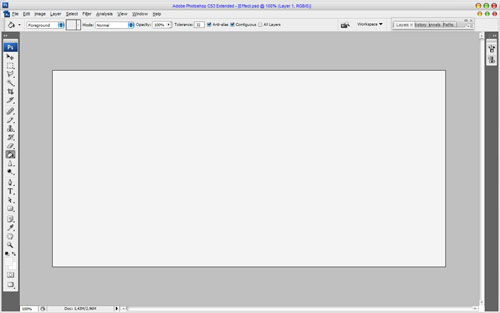
To start create a new document sized 1000×500 pixels and fill it with color of #f4f4f4.
Displaced Text 01

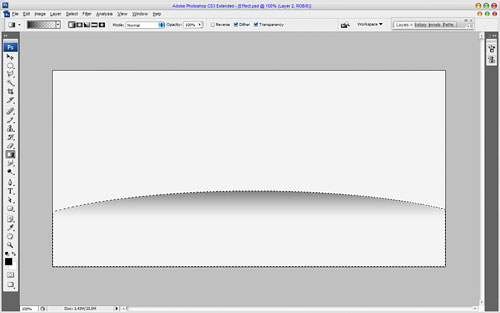
After that add some dark line to divide the floor from the wall. Get out the Elliptical Marquee Tool and create selection as shown on the picture which you can see below. Then fill this selected area with black to transparent gradient.
Displaced Text 02

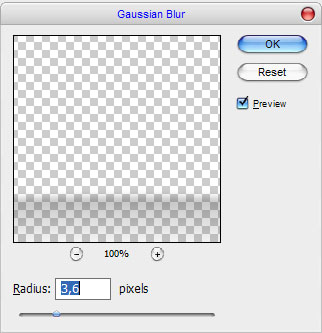
Remove selection with Ctrl+D and apply Filter > Blur > Gaussian Blur with similar settings to these:
Displaced Text 03

The result should look like this:

Displaced Text 04

Move to the next step. Select Horizontal Type Tool to write out the text on the middle of canvas on whish we will demonstrate displaced effect.

Displaced Text 05

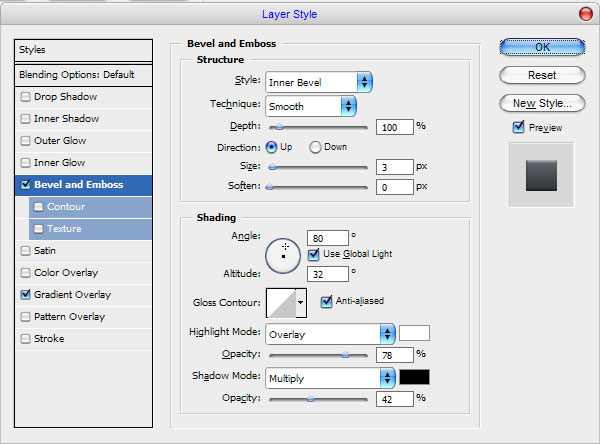
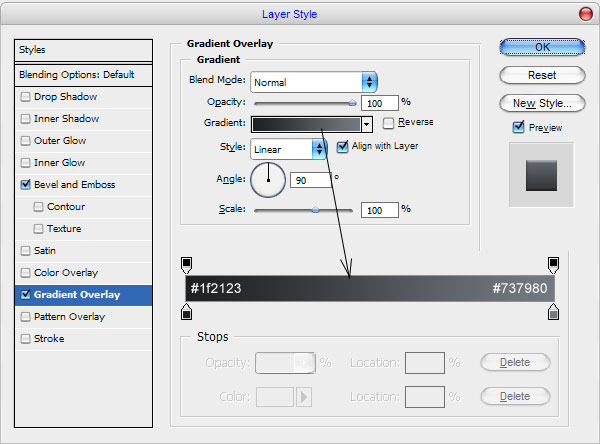
In the above image I’ve used Arial Black (250 pt, Crisp) as my font of choice. Then apply Bevel and Emboss and Gradient Overlay layer styles to this layer.
Displaced Text 06

Displaced Text 07

The result should be next:

Displaced Text 08

Create a new one layer above and merge it with text layer to get all the styles in one layer. After that we need to add some shadow under the letters. Create a new one layer under the current and make elliptical selection with Elliptical Marquee Tool. Fill selected area with black color.

Displaced Text 09

Remove selection with Ctrl+D and press Ctrl+F to apply the previous filter effect to this layer.

Displaced Text 10

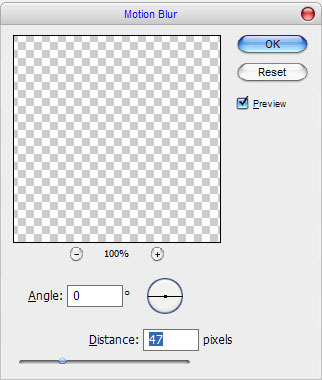
Then apply Filter > Blur > Motion Blur with next presets:
Displaced Text 11

The result should be next:

Displaced Text 12

Duplicate this layer three of times with Ctrl+J to add the shadow under each letter.
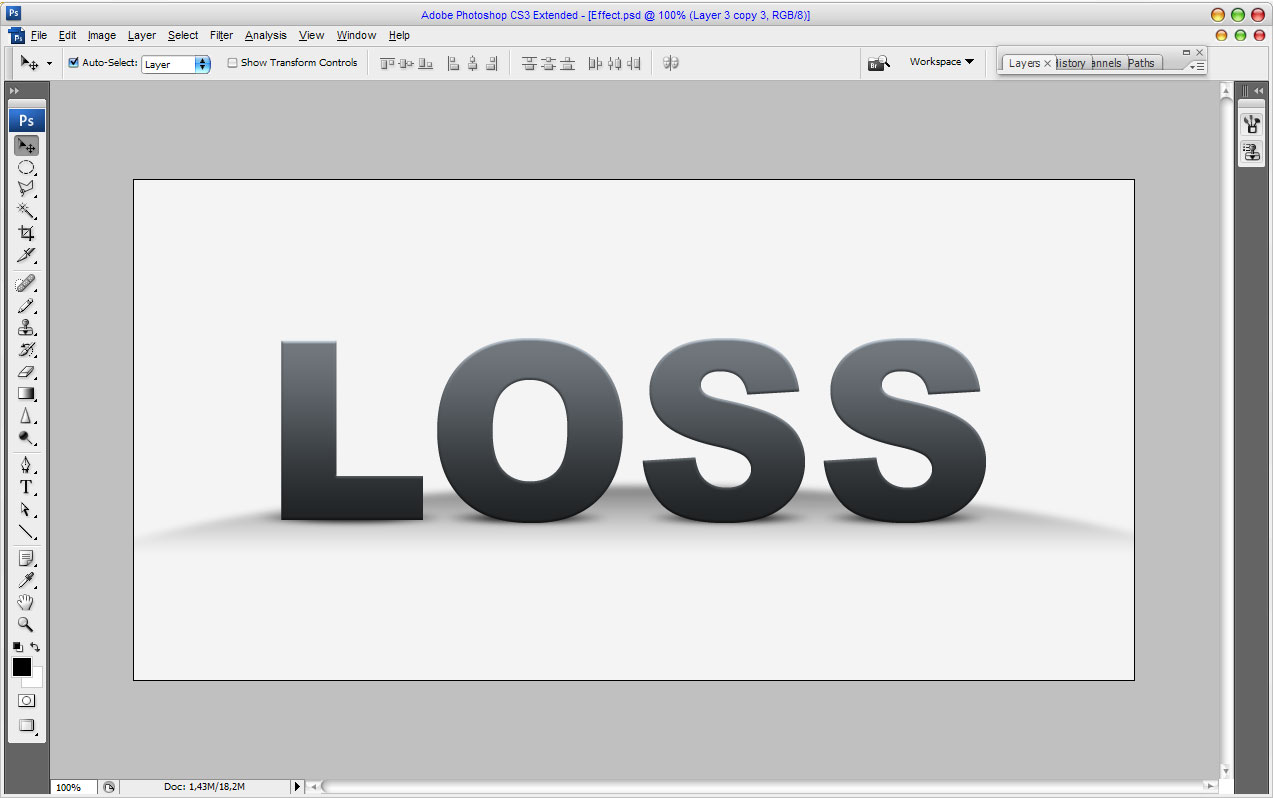
Displaced Text 13

Ok, after that go to the text layer and start creating displace effect. Use the Polygonal Lasso Tool to create selection as you can see on the picture below.
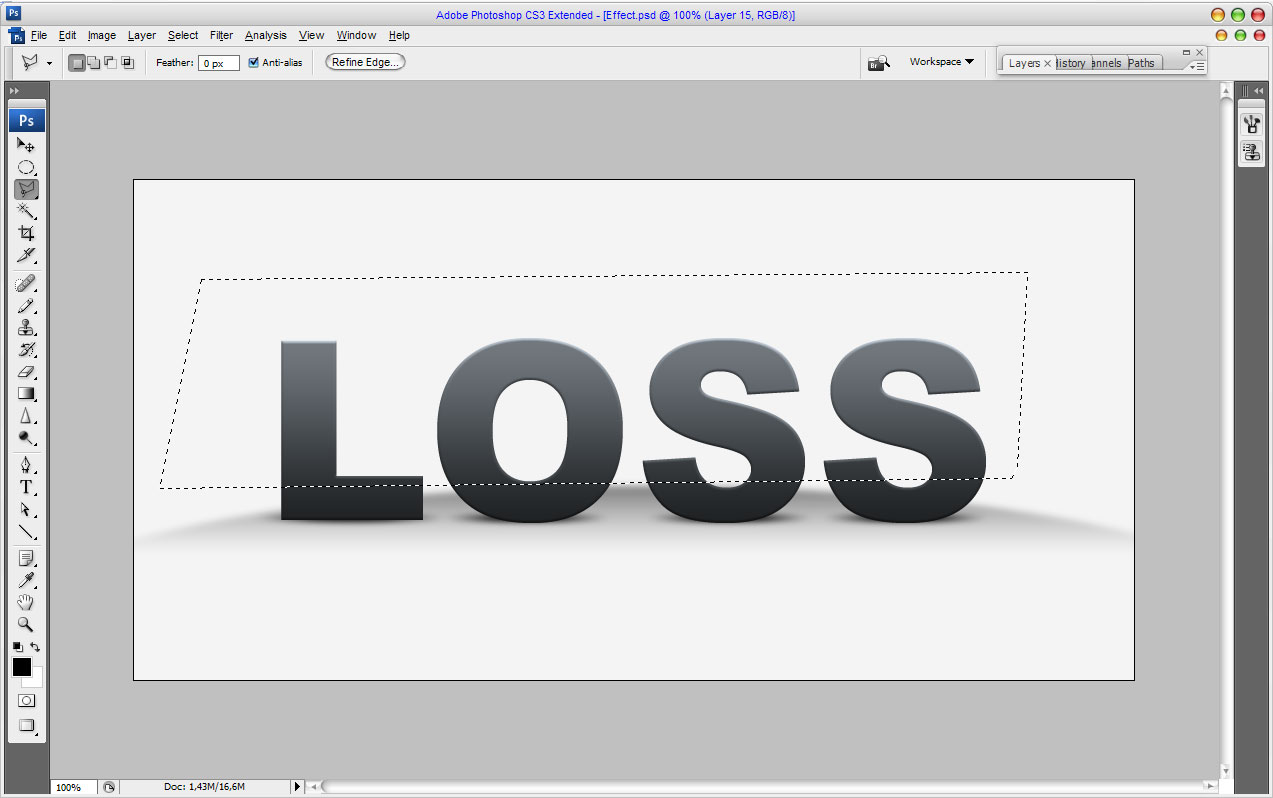
Displaced Text 14

Press Ctrl+Shift+J to cut selected area on the new layer. Use Move Tool to move a new layer a little bit.
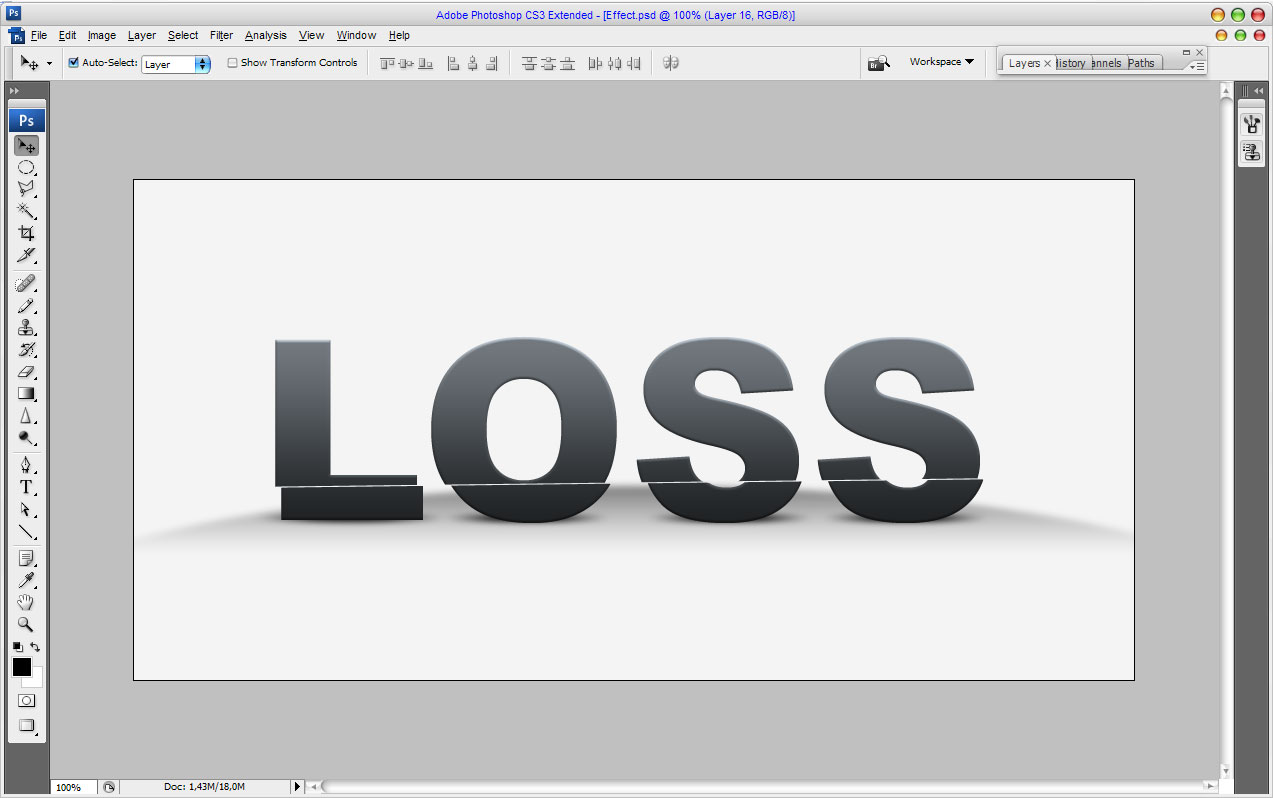
Displaced Text 15

Make the same things a few times more.
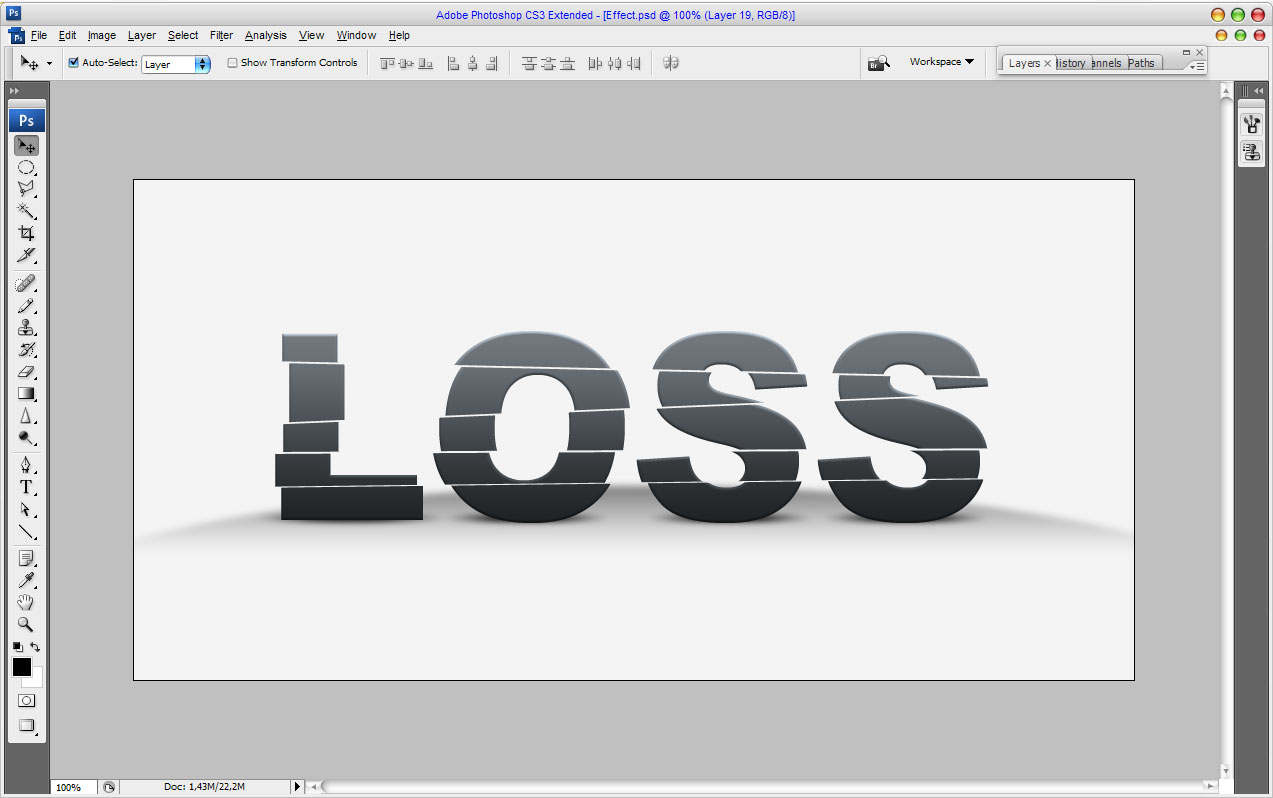
Displaced Text 16

Looks interesting, isn’t it? To finish off the effect I would like to add a robot that moves the text. The picture of robot you can download from here. Also feel free to use your own pictures. So, open up the picture and copy it to our main canvas with text. Then reduce the picture a little bit.


Displaced Text 17

To finish off the tutorial we should add the shadow under robots’ leg. Create a new one layer under the current. Then use the Polygonal Lasso Tool to create selection which you can see on the picture below. After that fill this selection with black color.
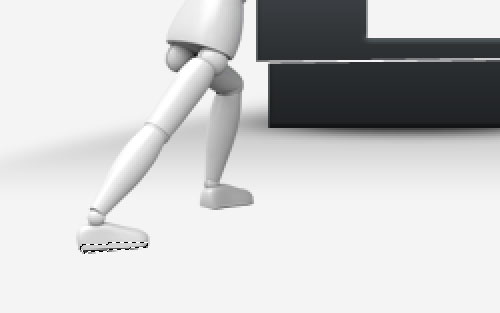
Displaced Text 18

Deselect chosen area with Ctrl+D and blur the shadow with Blur Tool.
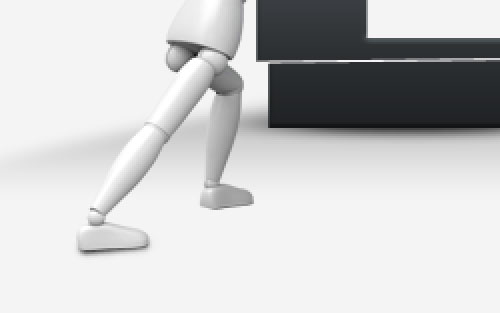
Displaced Text 19

Then use the Smudge Tool (Brush: 10px, Mode: Normal: Strength: 33%) to bring the shadow realistic view.
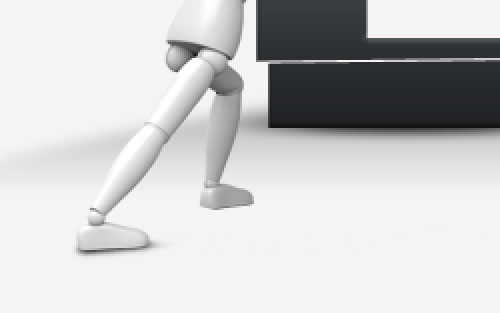
Displaced Text 20

Add the shadow under second leg in the same way.
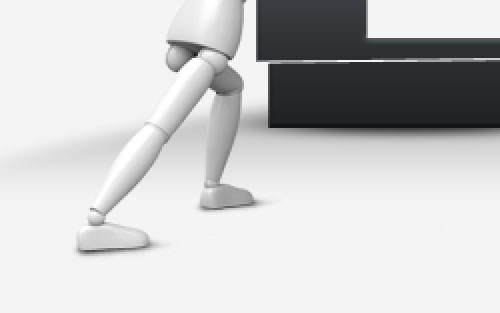
Displaced Text 21

Ok, we are done for now! We get creative displaced text effect. I am happy with the result, hope you to!
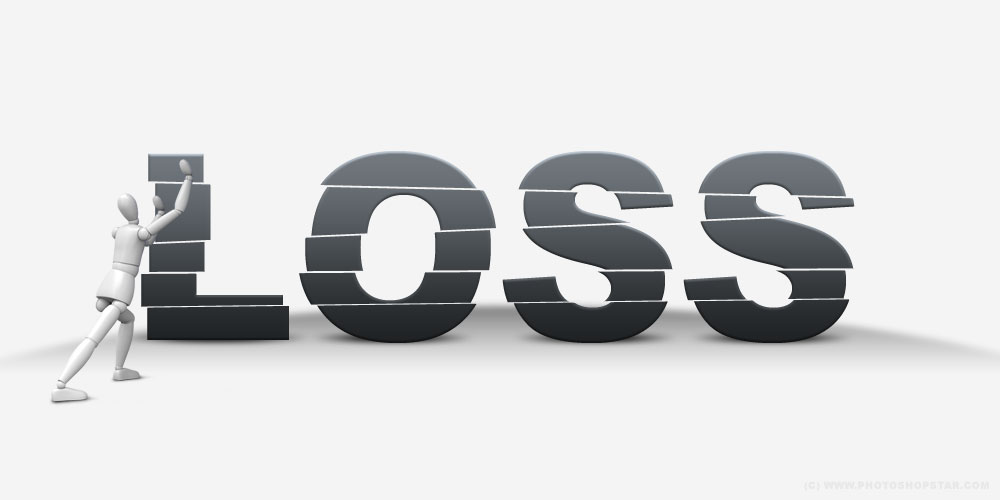
Displaced Text 22

No related posts.

Follow Photoshop Star

If you want to receive updates from PhotoshopStar, please consider subscribing our RSS feed. You can also follow us on Twitter or on our Facebook page.

If you prefer, you can also subscribe to our monthly Newsletter.

Share this Post

19 Responses to “Displaced Text”

  1. gooooooooood

  2. great tuto but please i want to show video

  3. More than wonderful

  4. thanks..,

    This is a great lesson..

    ,….,….,….,

  5. Hi….this is Ashwin from photoworld.

    first of all i apreciate your excellent effort for the subject. Its really amazing……thanks. keep going with new unique ideas….

    I tried to complite the same ( displaced text ) in photoshop cs3, but could not do it, i can not go ahead from “Press Ctrl+Shift+J to cut selected area on the new layer. Use Move Tool to move a new layer a little bit.” please, let me know why i can not complited the step after this. it dosenot work when i apllied this comand and try to cut and displace?
    thanks lot…..hope your kind response.

    Ashwin

    • Make sure you merged the transparent layer to the text, Than select the text with the polygon lasso tool, than it press Ctrl Shift J and it should cut it out, and instead of moving with the mouse, hold CTR, Press up once with arrow key, then left or right one to three times to desired effect

  6. i need help with the text shadow, someone help please :(

    • It does seem kind of confusing because the tutorial doesn’t show the selection. Just make a small thin oval underneath the last S (Or whatever) and follow instructions. Make sure that when you press Ctrl J to copy, you use the move tool to move them under the rest of the letters

  7. This tutorial is really boss. I loved it and i did it n it came out sick. You have showed me great skills man. Im from the caribbean and i must say dis was kool.

  8. how to create shadow effect on each letters

  9. You are the man!

  10. hello,

    great tut but he missed a few step on how to use “New Layer Via Cut” or Shift+Ctrl+J.

    when u done editing the shadow below on each text, u need to rasterize your text layer. right click on the text layer, select rasterize layer.

    use polygonal lasso tool on the text layer and make a box exactly same with displaced text 14. go to Layer > New > Layer Via Cut.

    u can see a new layer on the layers tab. click Move Tool and move your upper side of the text. Repeat the steps using the new layer.

    that’s all

  11. ITS COOOOOOOOOOOOOOOOOOOOOOL

  12. Very nise

  13. its really awesome :) ) \m/

  14. Hey nice tut let take a look at my pic i made with this.

    sorry if i taked your ROBOT Render.

    here the link TINYPIC.com
    http://i55.tinypic.com/9uanfa.jpghttp://i55.tinypic.com/9uanfa.jpg

  15. ooo…
    niceeeeeee it is

  16. i dont understand the part where he says “Create a new one layer above and merge it with text layer to get all the styles in one layer. After that we need to add some shadow under the letters. Create a new one layer under the current and make elliptical selection with Elliptical Marquee Tool. Fill selected area with black color.” any help is greatly appreciated!

    thanks!

  17. Go to layer – new layer. Then (this is what I did), make the bottom layer not visible. You should have a blank new layer and the text layer. Then go to layer-merge visible. Make the bottom layer visible again(click the eye). For the shadow, look at my previous comment above replying to edinchez