
Advertisement
On this Photoshop tutorial i am going to show u how to make cardiac rate effect which I got by experimenting with Photoshop filters.
Final Image Preview

Note: This is one old tutorial updated.
Step 1
Create a new document with size of 700×700 pixels for this tutorial. Select the Paint Bucket Tool and fill canvas with black color (#000000).

Step 2
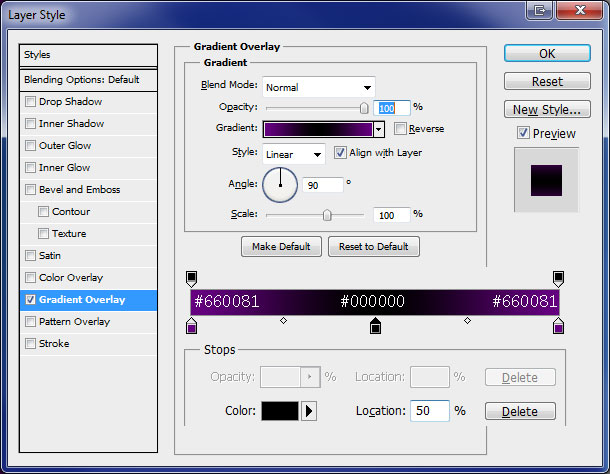
Apply Gradient Overlay to this layer by going to Layer > Layer Style > Gradient Overlay.

Step 3
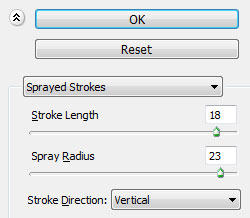
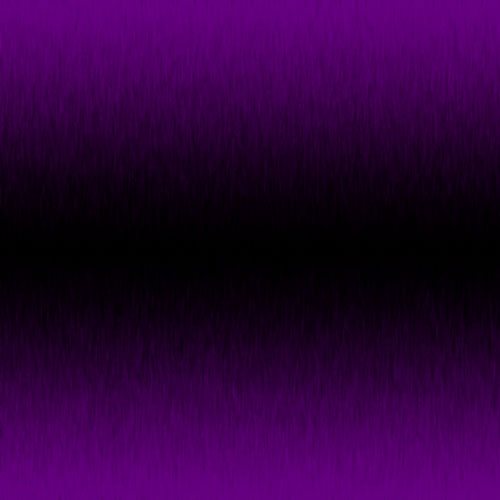
Create a new layer. Merge both layers (Shift+Ctrl+E) to get all effects on one layer and apply Filter > Brush Strokes > Sprayed Strokes with following settings:
Step 4
Select Horizontal Type Tool and write something like BEAT. Text color should be white, font selected was Swis721 BdOul BT Bold (free font), 120px and smooth.

Step 5
Select the Line Tool (Weight: 3 px) and draw the lines like on my image below:

Step 6
Merge all line layers with text layer into one layer. Select Eraser Tool and hard round brush (12px, opacity 100%) and delete lines like i show on my image below.

Step 7
Rotate layer by going to Edit > Transform > Rotate 90 CCW.

Step 8
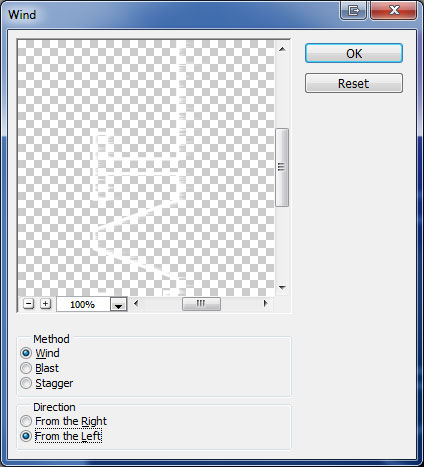
Apply Filter > Stylize > Wind with following settings:

Step 9
Press Ctrl+F one more time to repeat filter.

Step 10
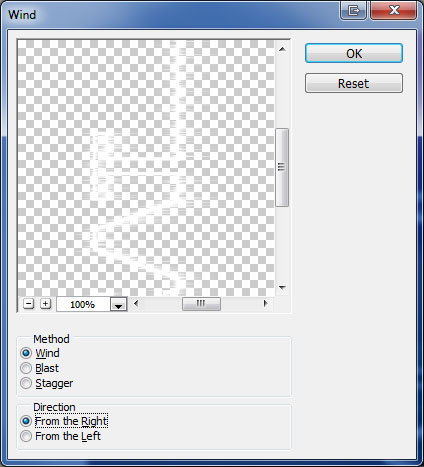
Apply Filter > Stylize > Wind again but update direction to Right:

Step 11
Press Ctrl+F one more time to repeat filter.
Step 12
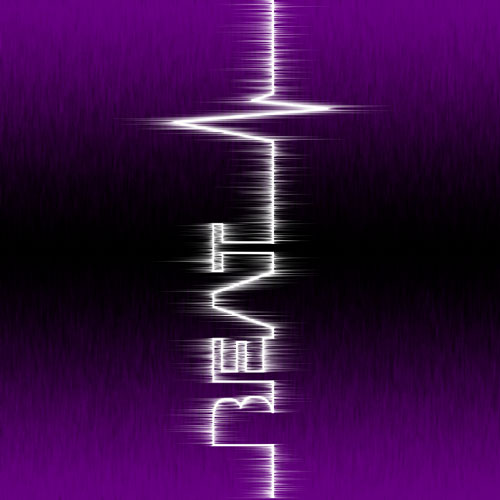
Rotate text by going to Edit > Transform > Rotate 90 CW.

Step 13
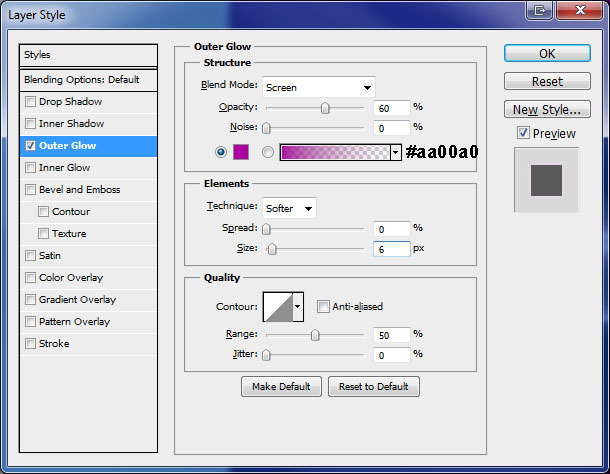
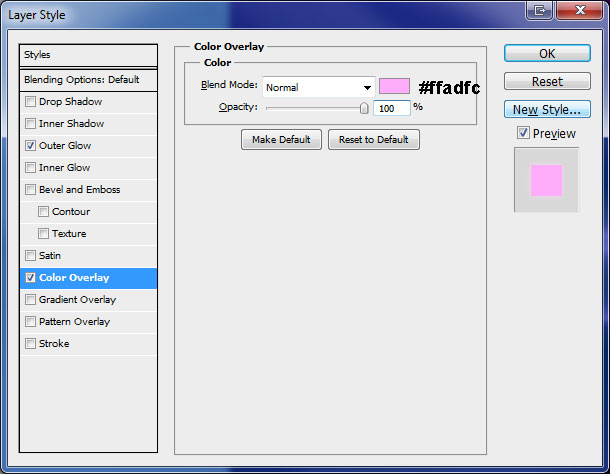
Go to Layer > Layer Style and apply Outer Glow and Color Overlay to this layer.
Final Image

We have completed this tutorial with this final step.

April 20th, 2011 in


Wow! This is so cool! Now I have something new to do for my Senior Page! Thanks a lot for the awesome tutorial!
I’m real glad I found your site! Where can I get this font? I can not locate it on the web and really want to try this tutorial you made. Thanks
Thank u very much. Superb tutorial.
@Willis – Here you go: http://font-cat.com/font-en-8685.html
So glad I came across this site, I’ve just started a digital media course and this has really made me feel more comfortable with photoshop, thanks very much!!
i have problem with this step ” After that create a new layer and merge it with previous to get all effects in one layer. Then apply Filter > Brush Strokes > Sprayed Strokes with next parameters”. i try then but the sprayed strokes not work. thx for help.
@agnesia pandora – I have this problem too.
Nobody can help us?!
hi
tanx for tutorials
what’s font name? i do not have
Really nice tutorial
nice tutorial it help me a lot in working and advertise
can u use photoshop cs2 to do this and if so wot font
hey
i can change the colour at gradient overlay…
please help me
hey great!
i have done this.!
greate
hey agnesia and hellcritical, to get the effect to work you have to merge visible not merge down-hope that helps
Looks awesome, but I can’t find my line tool
Where it is? (Its not where it is in your photoshop, Im using photoshop cs4)
nice tutorial…
I have the same problem…I can’t apply the Sprayed Strokes…any help please?
i like it. i will use it on designing manual for the hospital
thanks for this …..
thanks for this tutorial….
its totally awesome…
what font did you use?
Swis721 BdOul BT Bold
It’s a good tutorial.
i like this tutorial. very nice.
explanation is very nice
how did u use the line tool and merge it w/ the text? mines giving me a box when using line tool.
click and hold on your text layer, then click ctrl for whhichever layer you want to select, then go to the layer drop down menu and choose merge layers. Also on the box, you have to right click it to select line tool.
Useful Tut
Thanks
ty, i used this effect for the Name of my girlfriend (wallpaper)
Very Nice..
What is ur Photoshop software’s Version ?
I hate photoshop till Now.. But NOW i just wanna use it right NOW
ITS AMAZING…THANKS….!:)
It looks neat, but I’d be incredibly terrified if somebody’s EKG reading had all of those tiny spikes…. They’d be pretty much dead if that ever happened…. Oh well. Still neat looking. Thanks for the tutorial!
Thanks you. It’s simply for me so I like it.
Nice tutorial!!
Keep Writing
Thanks you. It’s simply for me so I like it.
This tutorial was very easy! It only took me 10 minutes! But it’s great for beginners. I love how this tutorial has the color codes. But I wish there was layer pictures.
Wow nice lovin it keep it up (:
nice tut man keep it up
Thinking about using this for a logo on my website. Thanks for the tutorial!
Omg I can not rotate my layer
. It says: ~The selected portion of the path does not enclose any pixels.
I followed all the steps since STEP 7. What is the problem?
I tryed Ctr+T combination to free transform edit and I get the same message.
Roarr Im a pretty noob :/
Helpp >.<
Very nice and simply work for grate effect. I like it.
nice and simply work for grate effect. I like it.
Great tutorial ……thanks
hi i don’t have swis721 in my cs3
nice tutorials… thanks
Excellent Design:)
I started studying photoshop using tutorials from this website and it gave me a hyper boost
very nice
You should name your Layers !
How much layers do you use with the Line Tool ?
Which layers do you merge ?
Why does all my image became pink instead of the word Beat with de Beating line ?
Thanks for your answer !
Otherwise great tutorial !!!
Great site… really helped me a lot… thx
nice easy, well explained tutorial
difficulty with drawing line………..
i can’t Merge all line layers with text layer into one layer…i hope you to help me