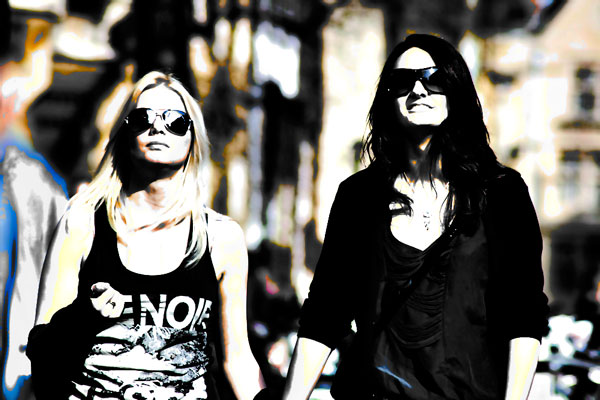
Creating Fashion Contrast Photo Effect


Advertisement


In this easy, step-by-step tutorial I´m going to show you how to create fashion contrast photo effect in a few minutes. This tutorial will be useful for designers who are doing professional fashion photo editing.

Final Image Preview
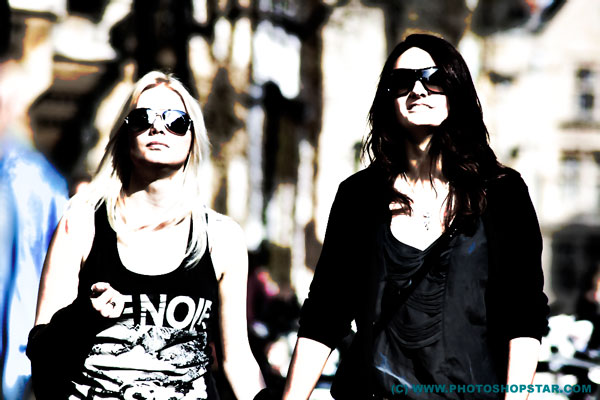
Creating Fashion Contrast Photo Effect

Resources

Step 1

Start by finding a photo that you can demonstrate the effect or you can use the one i will use. Open photo in Photoshop and resize it by going to Image > Image Size (Width 1000 px, Height 667 px). Layer name is
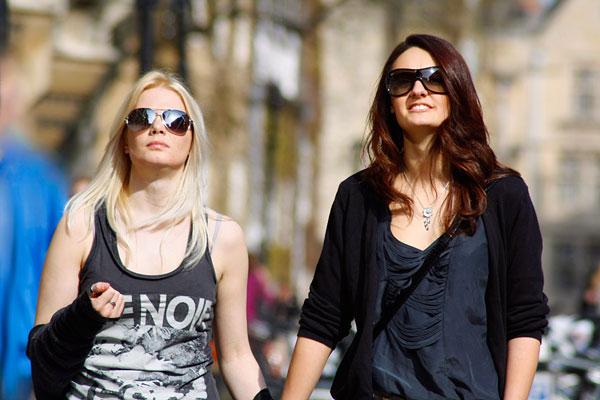
Creating Fashion Contrast Photo Effect 1

Step 2

I´m going to use filters to remove small shortcomings quickly without basic retouching. Apply Filter > Blur > Smart Blur with following settings:
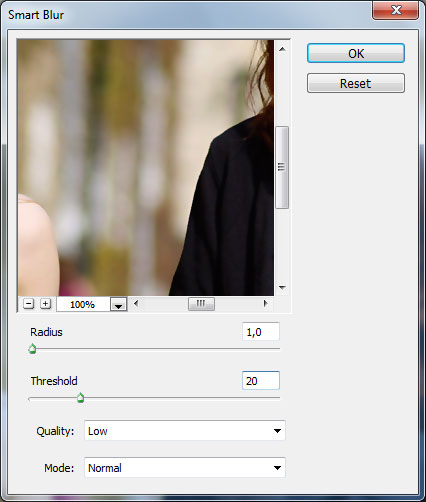
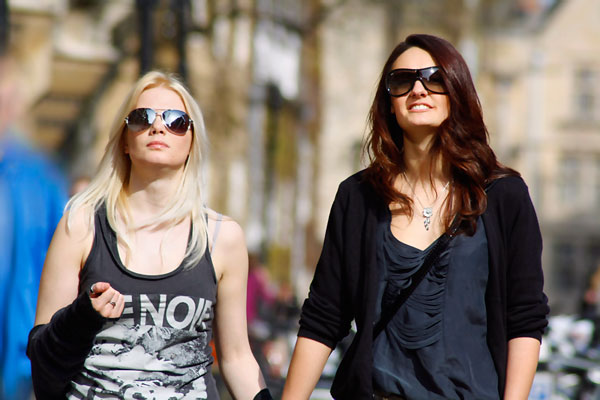
Creating Fashion Contrast Photo Effect 2

Creating Fashion Contrast Photo Effect 3

Step 3

Then i would like to increase sharpness and brightness a little bit by using Filter > Sharpen > Smart Sharpen.
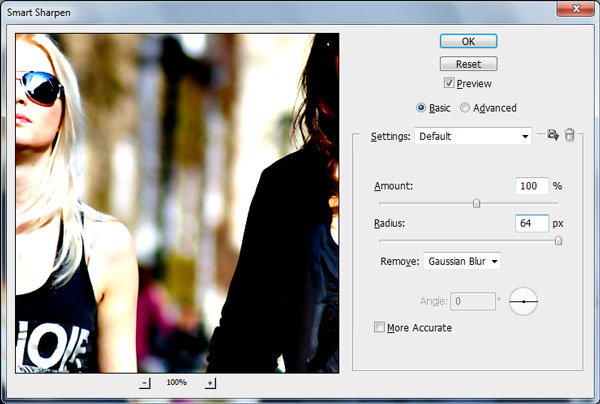
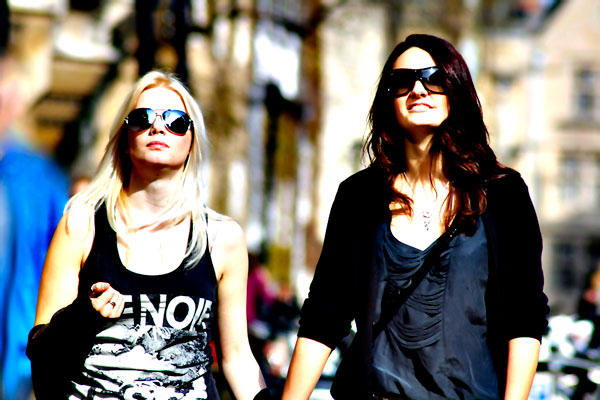
Creating Fashion Contrast Photo Effect 4

Creating Fashion Contrast Photo Effect 5

Step 4

Duplicate current layer with photo by using Ctrl+J and apply Image > Adjustments > Channel Mixer with similar settings to these:
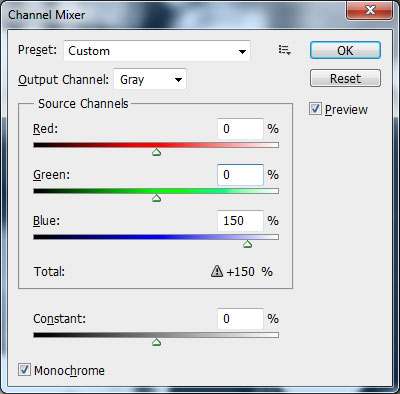
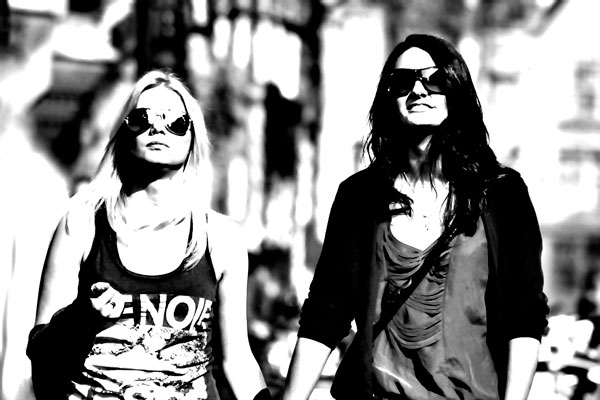
Creating Fashion Contrast Photo Effect 6

Creating Fashion Contrast Photo Effect 7

Step 5

Change layer mode to Color Burn for this layer.
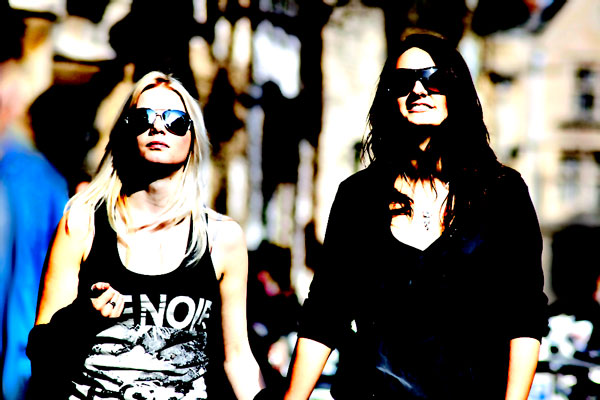
Creating Fashion Contrast Photo Effect 8

Step 6

Now we have two layers: one original layer on the bottom and one copied modified layer on top. Go to lower original layer and duplicate it again with Ctrl+J. Move it above all the layers on Layers palette and apply Image > Adjustments > Brightness/Contrast:
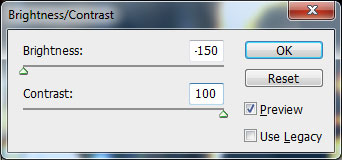
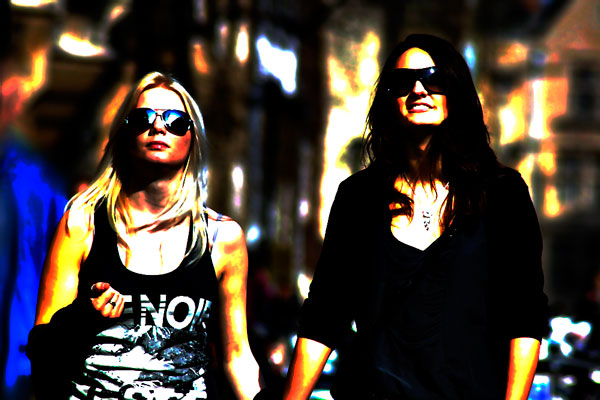
Creating Fashion Contrast Photo Effect 9

Creating Fashion Contrast Photo Effect 10

Step 7

After that change layer mode for this layer to Lighter Color:
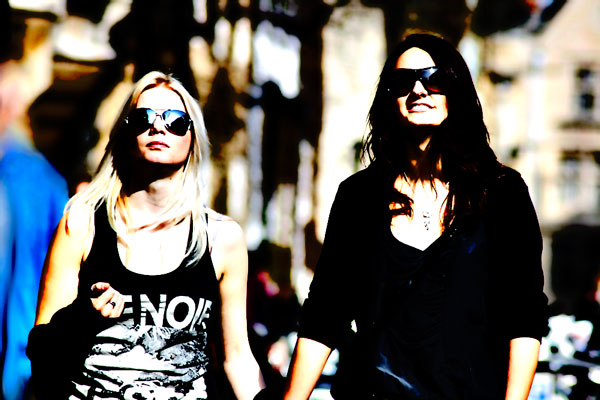
Creating Fashion Contrast Photo Effect 11

Step 8

Now we are going to reduce saturation of the photo. Duplicate current layer again and desaturate copy with Image > Adjustments > Desaturate.
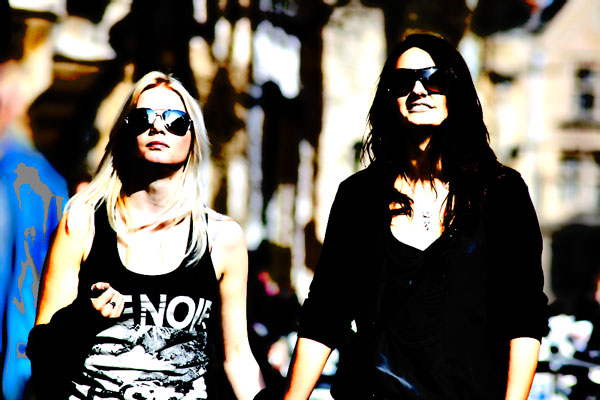
Creating Fashion Contrast Photo Effect 12

Step 9

Increase brightness with Image > Adjustments > Brightness/Contrast:
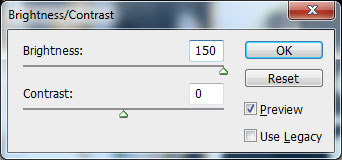
Creating Fashion Contrast Photo Effect 13

Creating Fashion Contrast Photo Effect 14

Final Image

Finally change layer mode to Screen for current layer.

Create a Greeting Card for Christmas and New Year

Now you know how to create fashion contrast photo effect in a few minutes. Have fun trying.

Related posts

Follow Photoshop Star

If you want to receive updates from PhotoshopStar, please consider subscribing our RSS feed. You can also follow us on Twitter or on our Facebook page.

If you prefer, you can also subscribe to our monthly Newsletter.

Share this Post

13 Responses to “Creating Fashion Contrast Photo Effect”

  1. i learned very easy. ^^

  2. That’s cool! Looks like lomography effect.

  3. I did it but the result doesn’t seem to be as the same as what u did!

  4. Outstanding tutorial.

  5. nice bt vry basic

  6. good effect, i got it.
    thanks friend

  7. so intresting i ve done it and i ve got just like what u got.thanx alot

  8. i did it but it didnt show up 2 look like that

  9. Honestly, i would leave the photo alone at about step 8. Not step 9 and beyond, it just looks too bright. The step 9 photo has more richer colors and life in them as oppose to the last 1 with very little color besides white and black. Just leaving some constructive criticism.

  10. wait lemme correct myself “The step 9 photo has more richer colors” I ment to say step 8 lol

  11. Oh my god this was so easy,i’m form bosnia and herzegovina,i speak English but not well,and I did understand it :P thank you so much you are the best