Learn How to Create Liquid Plastic Effect


Advertisement


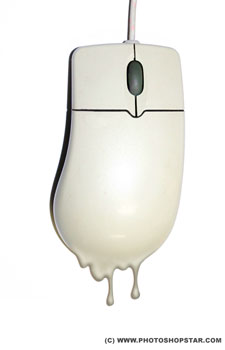
In this tutorial i will teach how you can create in a few steps the effect of liquid plastic on Photoshop.

Final Image Preview
Resources

Step 1

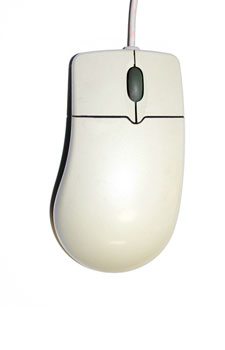
Open file. First thing which you need to do is to unlock the background layer. To do this, double click on the “Background” layer and name it “Mouse”. Move layer a little bit upper, then create new layer under “Mouse” layer named “Background” and fill it with white color
Step 2

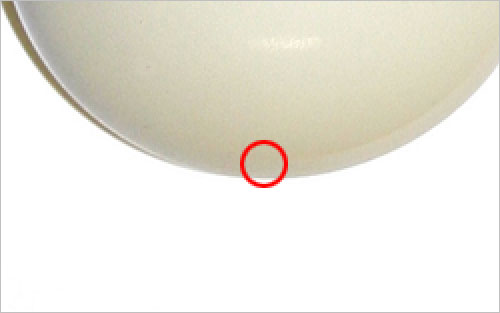
Now get color sample from the bottom part of mouse by using Eyedropper Tool. I got color #c3bea3.
Step 3

Select the Pen Tool (Shape layers mode) and try to create shape of falling droplets somewhere on the bottom part of mouse using the same color as we selected before.
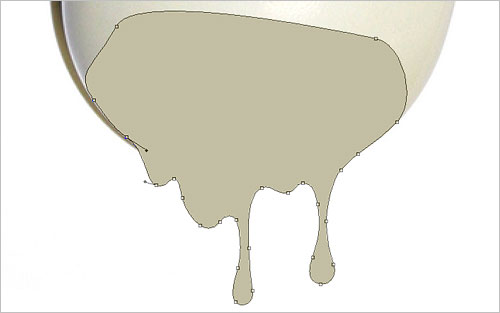
Step 4

When our shape is done, just rasterize it with Layer > Rasterize > Shape. Then select the Burn Tool (Brush: 20px, Range: Highlights, Exposure: 40%) and make bottom parts of run a little bit darken.
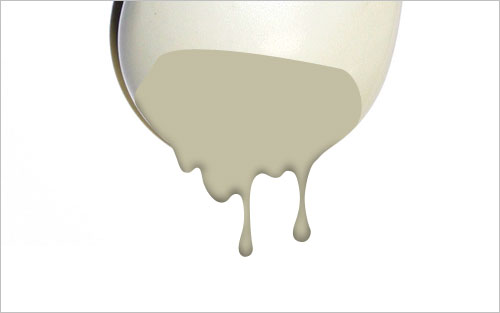
Step 5

After that select the Dodge Tool (Brush: 25px, Range: Midtones, Exposure: 35%) and make small dodge work in places where the light should fall.
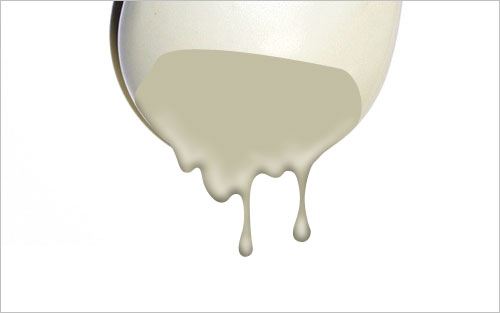
Step 6

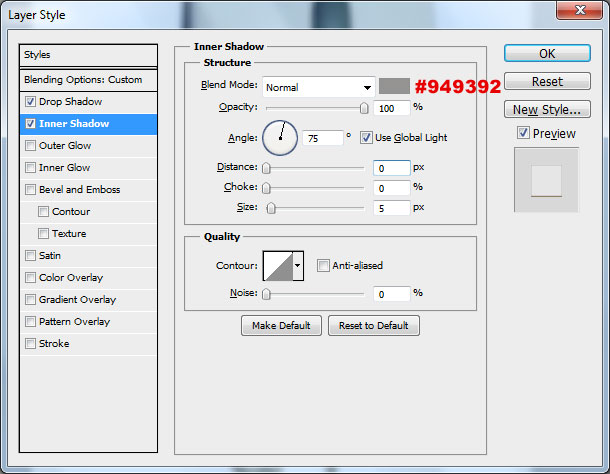
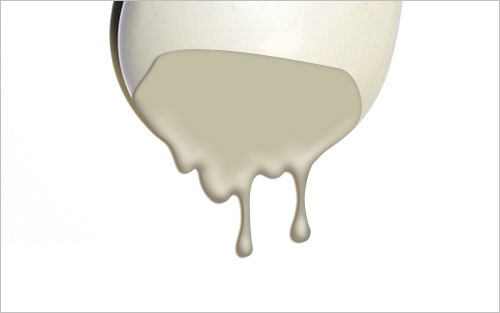
Go to Layer > Layer Style and apply the following layer styles to this layer:
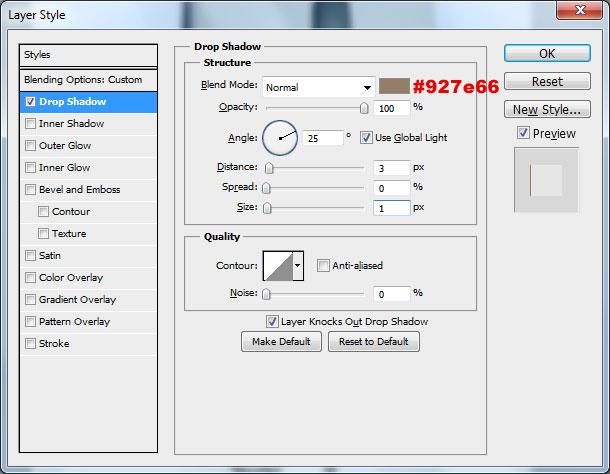
You should get this effect:
Step 7

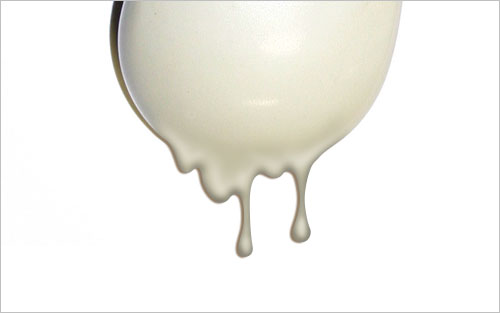
Create a new layer above and merge it with previous to get all the effects in one layer. After that select the Eraser Tool and soft round brush about 50 pixels to remove visible border between current layer and mouse.
Step 8

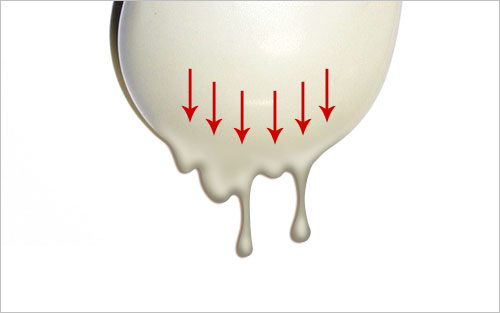
Then select the Dodge Tool (Brush: 60px, Range: Midtones, Exposure: 10%) to remove color difference between keyboard layer and run layer.
Step 9

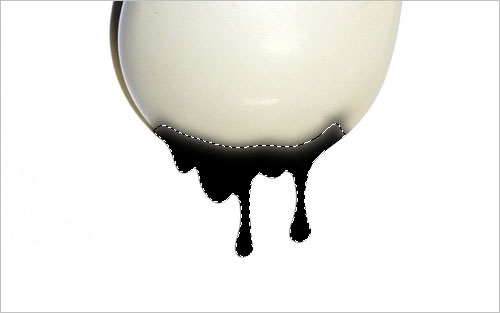
As we can see, keyboard surface has some noise on the surface. It means that we have to add the same texture to the run surface. Select this layer with Select > Load Selection, then create new layer and fill it with black color.
Step 10

After that remove selection with Ctrl+D and apply Filter > Noise > Add Noise with similar settings to these:
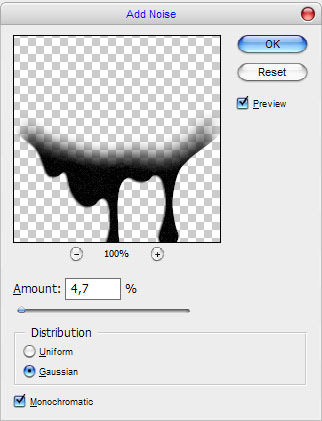
Step 11

Change layer mode to Screen and you will get the next result:
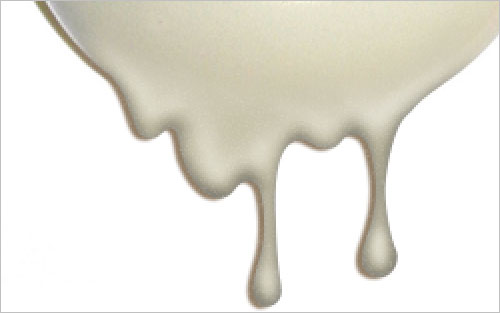
Final Image

This tutorial is now complete. Hope you liked it!

Related posts

Follow Photoshop Star

If you want to receive updates from PhotoshopStar, please consider subscribing our RSS feed. You can also follow us on Twitter or on our Facebook page.

If you prefer, you can also subscribe to our monthly Newsletter.

Share this Post

30 Responses to “Learn How to Create Liquid Plastic Effect”

  1. hmmm…
    nice 1 :)

  2. i want more effects

  3. I already done this tutorial. Cool Awesome.

    Thanks you for share your photoshop technique.

  4. great dear nic tut!!!!

  5. good effect i must admit

  6. Will use this effect on my website. Totally awesome thanks!

  7. I really liked the trick

  8. Nice tutorial I have been looking for something like this one. thanks, keep up the good work!

  9. Simple but useful, thanks fot the tut…

  10. i m really impressed by this tut. dude. thankx for sharing ur interesting idea. keep it up man…….

  11. very impressive art. very nice. thnx.

  12. A brilliant tutorial, thanks for sharing ^^

  13. Great tutorial I just looking something like that. Thanks.

  14. Hmmmm………..i liked your creativity and tech.

  15. wow this tut is amazing >..>…>>>..>..>.>>.>.>.>

  16. beautiful

  17. I really like this, great tut and effect. This technique would provide more control and precision than using the liquify tool. Nice work, I will certainly use it.

  18. so amazing………..

  19. this is a great tool I really like it I will defiantly use it in the future.

  20. this is so amazing yesss it is . im so in love with everything lol :)

  21. yes, u can tell louder….just amazing, u must have great imagination to create this.thx

  22. fist of all thanks!for sharing such a amazing knowledge with us. i realy like this awesome work and I also tried tryied this..

  23. so good

  24. Thanks for the tut :)
    the whole “add noise trough a new layer” is super usefull, and something i hadn’t thought of yet!
    Thanks again!