
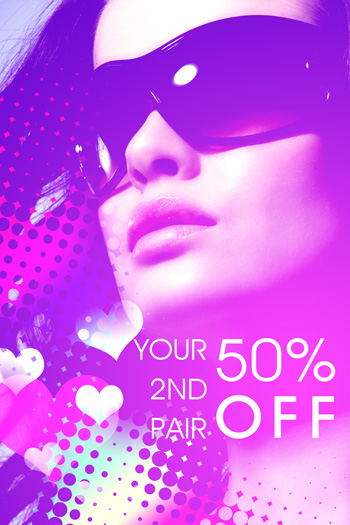
In this Photoshop tutorial we’ll be designing a simple but stylish fashion-themed advert. You know, so you can sell sunglasses and stuff 😉
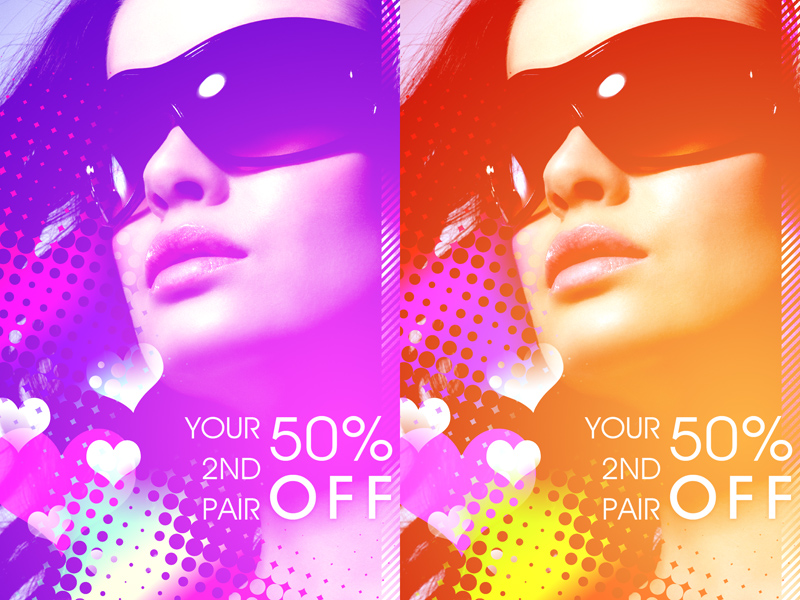
1. Document Creation
Get started by finding a nice, suitable stock photo to work with. For this you’ll want to use one of the following websites:
- iStockPhoto (paid)
- DeviantART (free)
- Dreamstime (paid)
- stock.xchng (free)
I used a stock photo that I bought/downloaded for free (can’t remember exactly) from iStockPhoto a while ago.
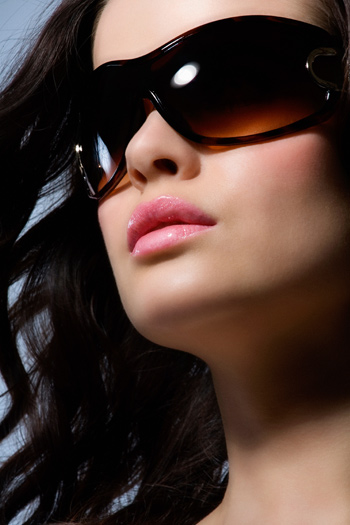
As you can see, I’ve chosen a photo of a pretty girl wearing big sunglasses (now the theme of the design). Open your photo in Photoshop and get to work by resizing it, copying it to a new document, or whatever you want to do with it.
2. Colourise
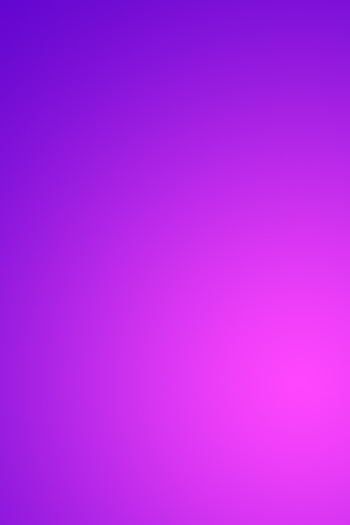
Create a new layer (layer > new > layer) then get out the Gradient Tool. Using the gradient tool, add a very bright radial gradient onto your new layer (like this):
Try a few different layer modes and see which one looks best to you (I chose Screen):
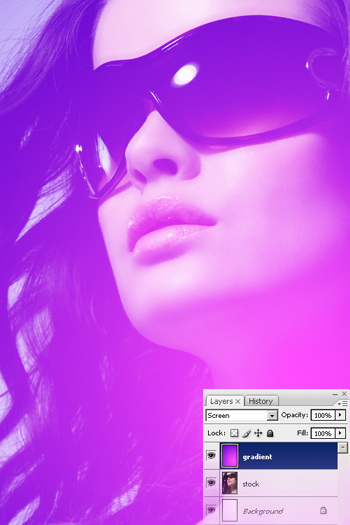
You might also want to try a few different Solid Color fill layers, then mess with the settings for those, but this will be fine for now.
Please note that the colors that I used in the radial gradient were roughly #f743fb and #6909d1.
3. Shapes / Details
For this part of the tutorial you might want to hide the layer we previously made (the gradient layer). Start by getting out the Custom Shape Tool and finding the heart shape (or any other shape you think would look cool). Create a new layer and make a few white hearts on your canvas.
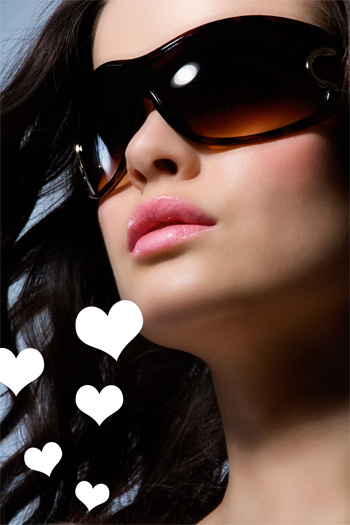
As you can see in the above image, I also rotated a few of my heart shapes to make it look a little more interesting! Finish off with the hearts by adding a larger, pink-filled one in the background (behind your white shapes).
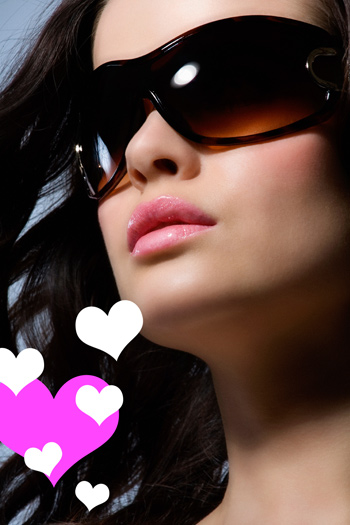
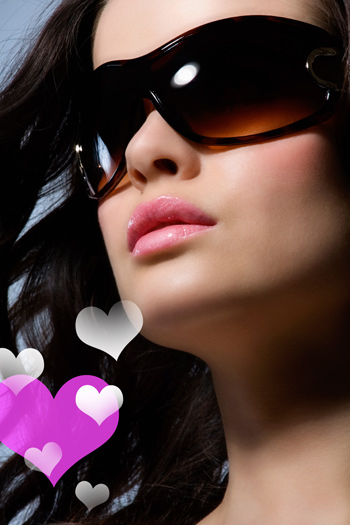
I finished up by lowering the opacity for the larger heart shape layer, and erasing a few of the edges from the smaller heart shapes (see in the below image):
Take note that this isn’t an exact science! Get creative here.
4. Halftone Effect
Now we want to add something really interesting on top of our hearts/shapes. Start by opening the Channels tab (window > channels) and creating a new channel (create a new channel by clicking the icon at the bottom of the palette). You might need/want to make a new layer before doing this channel business.
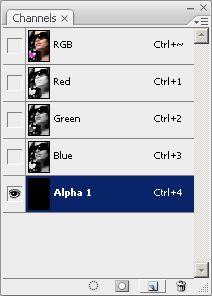
After you’ve made yourself a new channel, get out the brush tool, and using a large, soft brush, dob a few times onto your black canvas (making sure your new channel is selected).

Now to make an interesting effect out of these boring dobs — go to Filter > Pixelate > Color Halftone and use an appropriate setting (you’ll have to press OK and check if it’s good enough). Using 32 as your Max. Radius should be good enough.
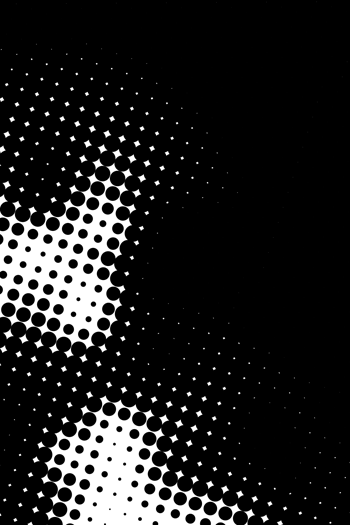
Now, holding ctrl down on your keyboard, click on the thumbnail for your new channel, this will select the pixels. Go back to your layers palette and select a new/blank layer. Fill your newly-made selection in the fresh layer with the very bright & colorful gradient that comes with Photoshop.
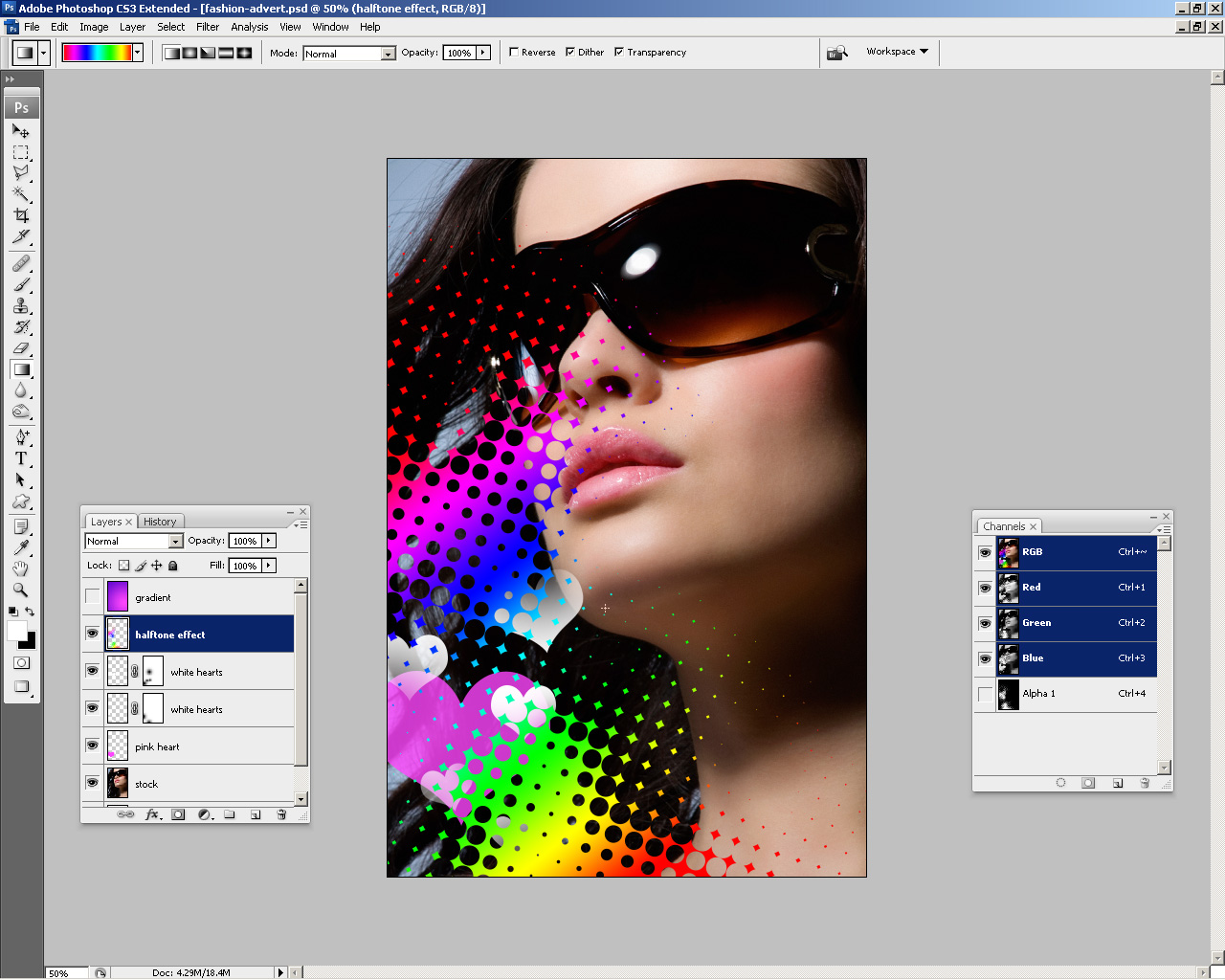
To finish off with the halftone effect, you might want to erase the shape away a little bit, in case it’s hiding a bit of the face. Or you could go back to the channel and redo it so it’s a little more to your liking. Unhide your previously-hidden gradient layer and see how it’s looking now!

5. Image Adjustments
It would probably have made more sense to do the image adjustments at the start of the tutorial, but now we know what our outcome is mostly going to look like, we can make some photo adjustments to our stock. The main thing I did was add a levels adjustment layer below our screen gradient layer (note: layer > new adjustment layer > levels).
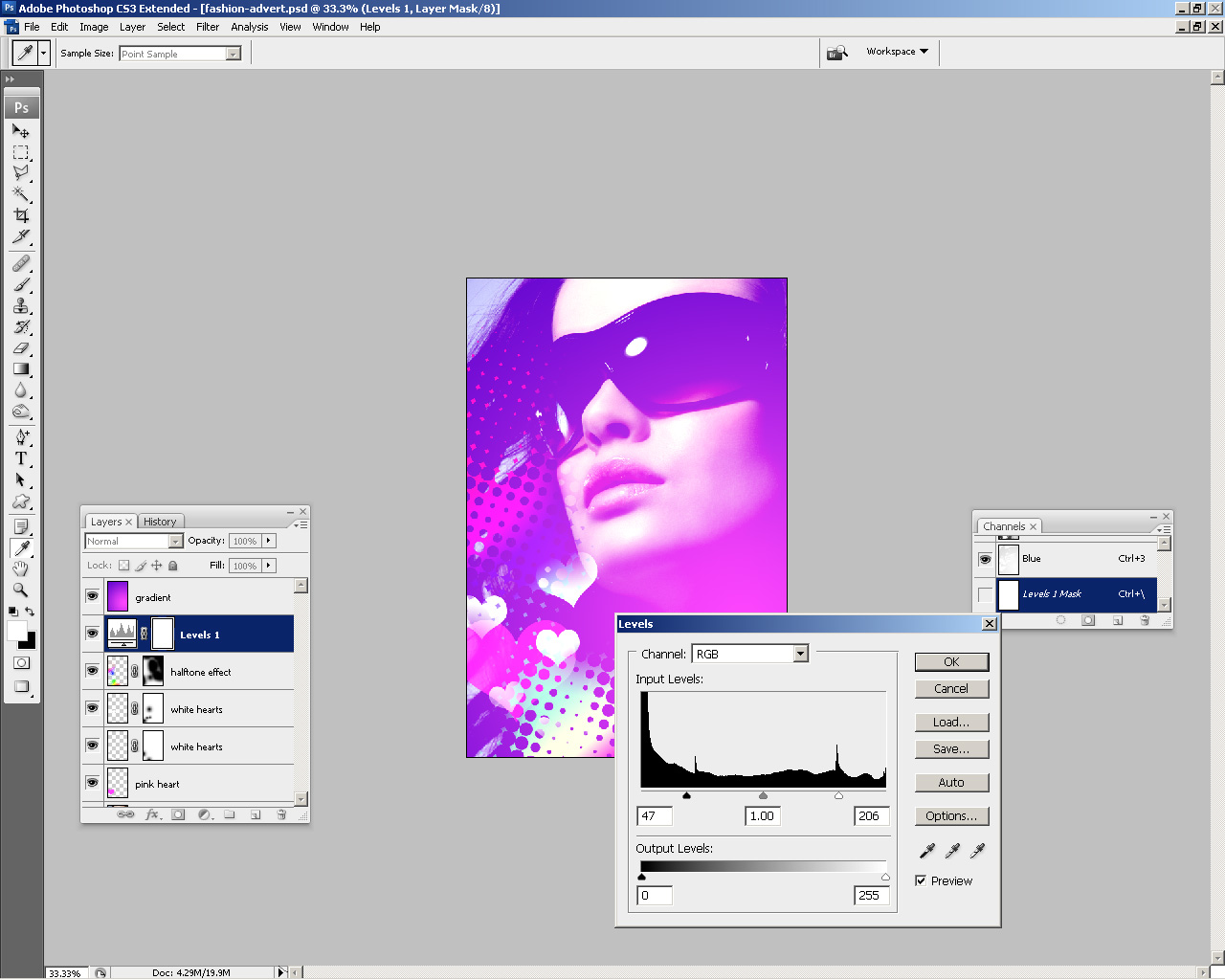
You may also want to adjust the photo in a few other ways, for example, you could make her lips sparkle a little more? I don’t know! 😉
5. Add Text
This design wouldn’t be complete without some sort of text now, would it? Start by getting out the Horizontal Type Tool (just the regular text tool!) and write out some text, in this case I used two sets of text, one reading YOUR 2ND PAIR and the second set of text reading 50% OFF.
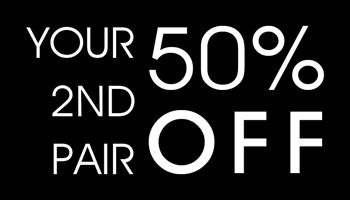
The beautiful font which I’ve used above is called Decker, and you can download it completely for free at Urban Fonts. For all of the text I used Decker Regular, except for the word OFF, which I used Decker Bold on. After you’re all done with the text settings, position it accordingly.
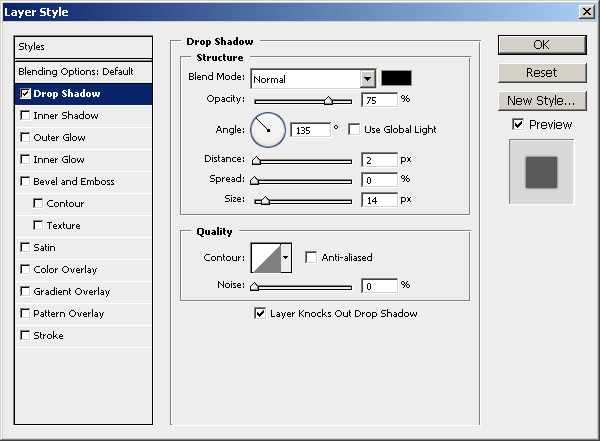
I’m not actually sure where would be the best place for this text. If you find your text doesn’t fit, you could always make it smaller and add a Drop Shadow to make it stand out a little more.
Additional Effects
Basically now you should get creative and throw whatever you’ve got onto the canvas, such as patterns, maybe textures, other stock photos, something to go with the theme you’re working with. One thing that I thought was a good idea was to add a scan line pattern into the corner and make it blend in nicely using the layer modes.

Just remember though, you can download the complete PSD file from this tutorial, so if there was something you need help with or want to check out, please feel free to download the PSD file. Another thing to do after you’re all done is change the colors used in your Screen gradient layer, you might come up with a surprisingly nice result!
Mission Accomplished
Well, we’re done for the tutorial! I hope you enjoyed it, even just a little bit. Now you’re equipped with the knowledge of designing a nice, fashion-themed advert, and the possibility of selling sunglasses will haunt you for the rest of your days 🙂