

Separating Complex Objects from Background


Advertisement


Separating Complex Objects from Background

You can find a lot of tutorials how to separate complex objects from the background. But I would like to invite your attention to another one unique simple tutorial how to achieve the desired effect in just a few steps. I got this method by experimenting.

In the beginning you should find some appropriate picture to work with. You can use Google Images or also feel free to use mine picture. Open up the picture and start with tutorial.

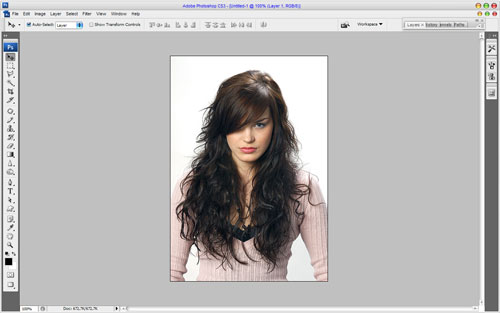
Separating Complex Objects from Background 01

Apply Filter > Extract with similar settings to these:
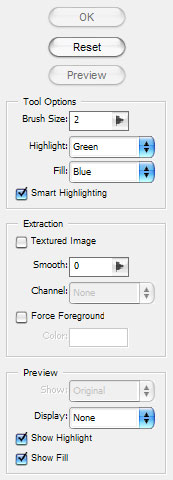
Separating Complex Objects from Background 02

This is where we start to extract the image first of all zoom into the image with Zoom Tool so you can clearly see the outline and set the brush size to a suitable size and then simply draw around the outline of the woman’s hairstyle with Edge Highlighter Tool. If you made wrong line, you can remove it with Eraser Tool. Now fill in the area which you want extracting to do this select the Fill Tool on the left hand toolbar and simply click inside of the drawn outline.
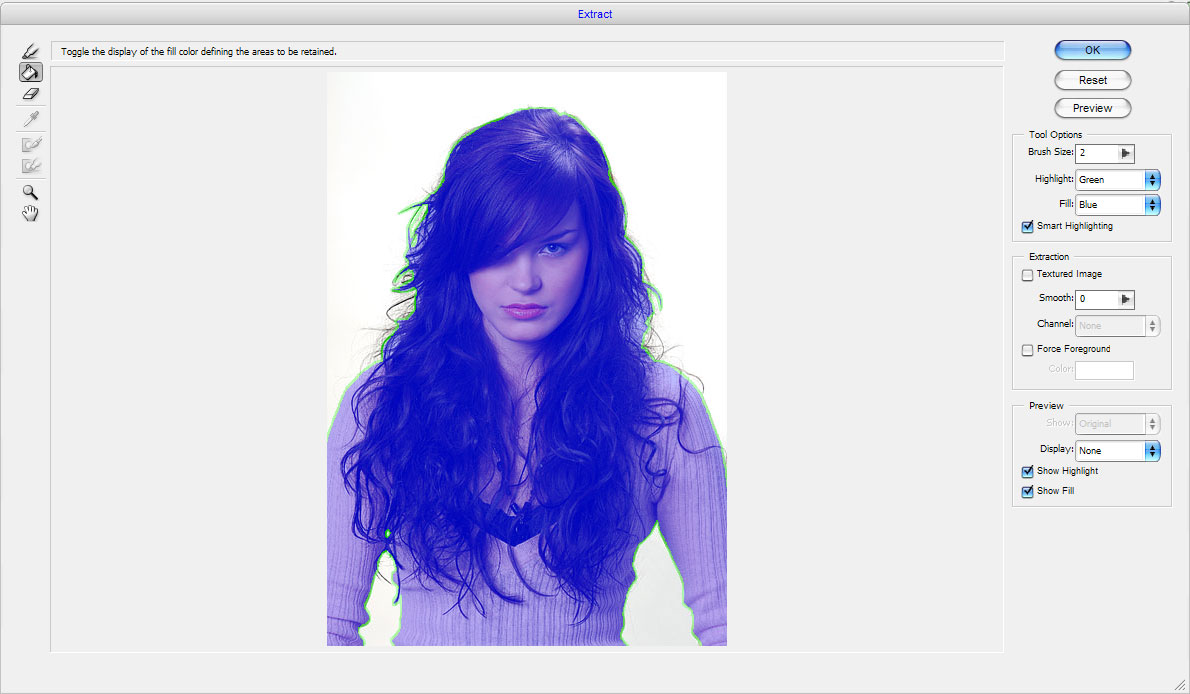
Separating Complex Objects from Background 03

Now press OK in the top right of the window and you should go back to the normal Photoshop window, and if you did the last steps correctly you will have an image without a background, if all done correct the edges will look fine, if not then you may find some discrepancies which can simply be erased.
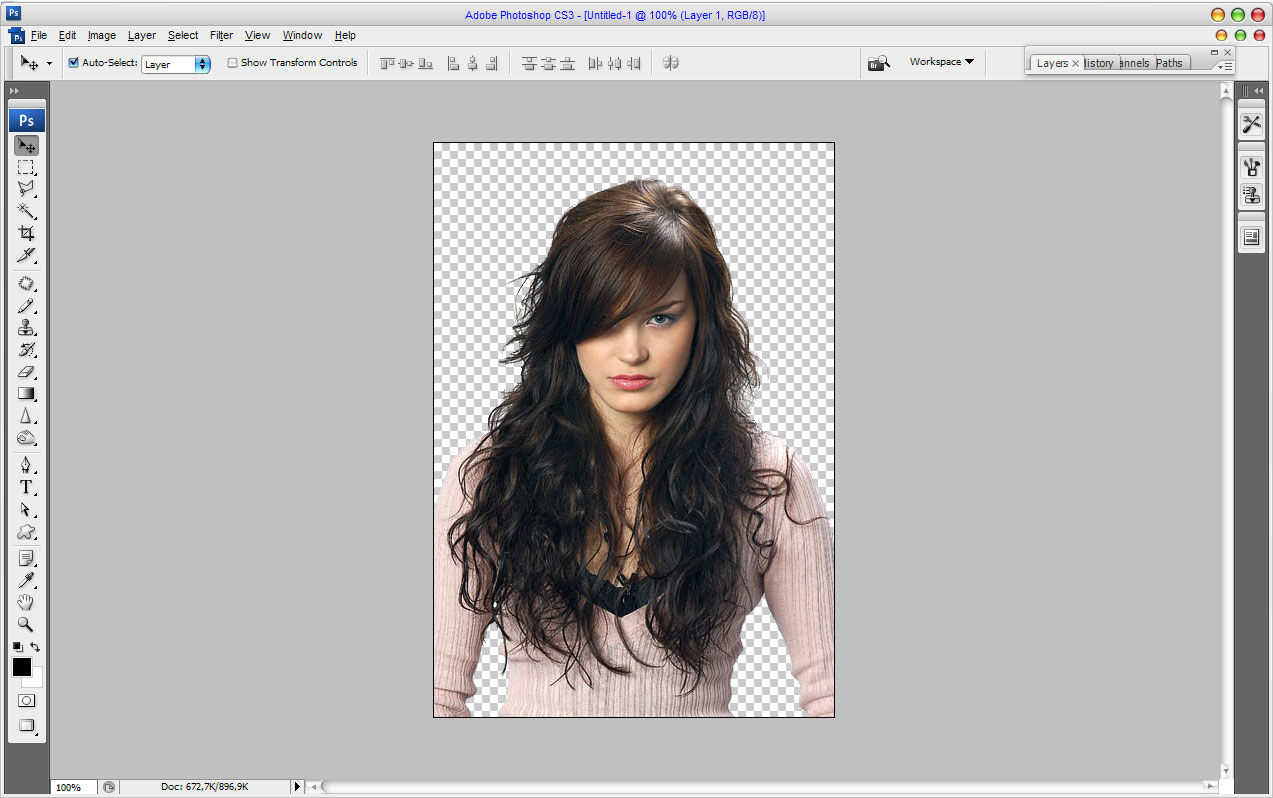
Separating Complex Objects from Background 04

After that create a new layer under and fill it with color of #aed2da.
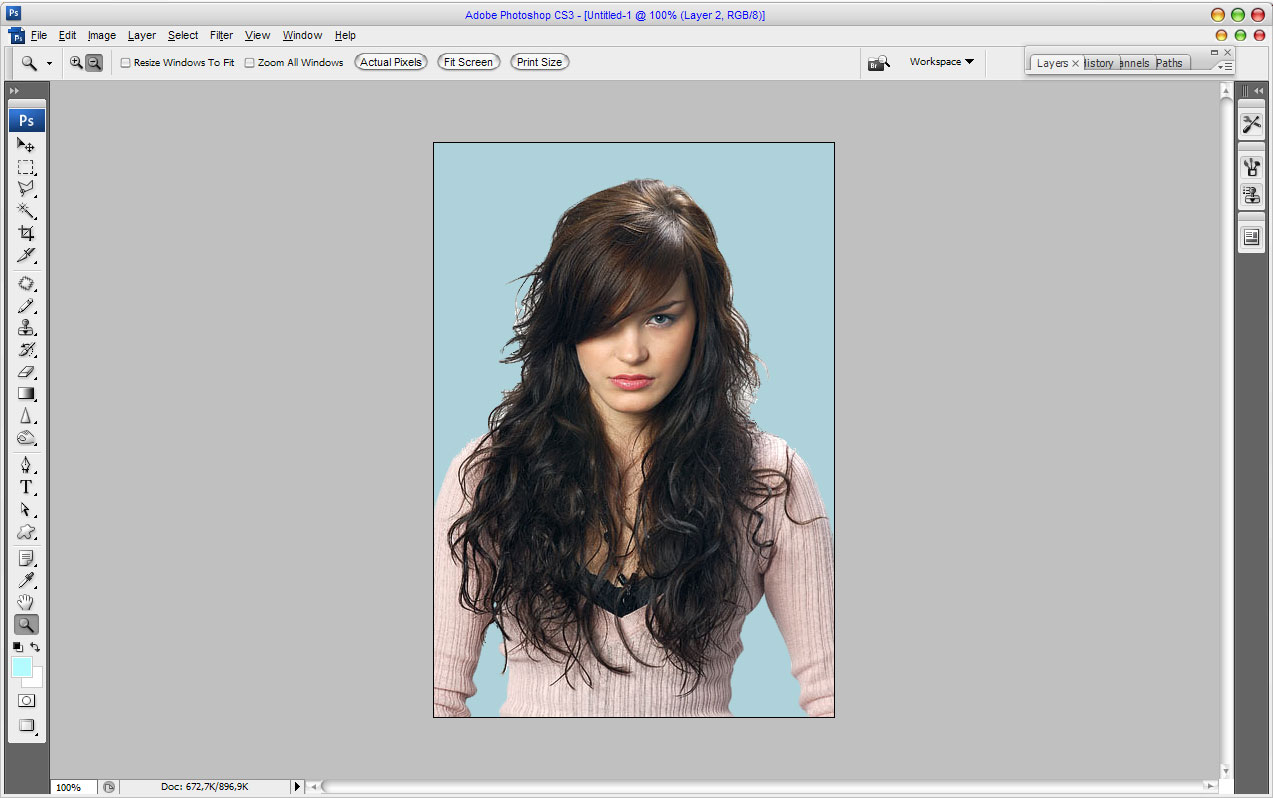
Separating Complex Objects from Background 05

Now we can see that we have some defects on woman’s hair. It is not a big problem, just get out the Eraser Tool and select one of standard brushes from Photoshop palette:
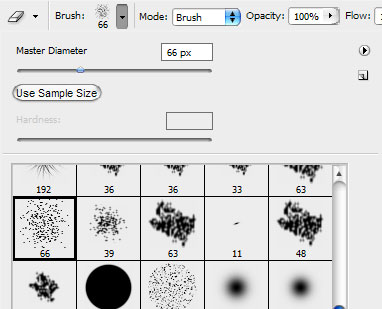
Separating Complex Objects from Background 06

Reduce brush size to 25 pixels and process areas where you can see visible defects.
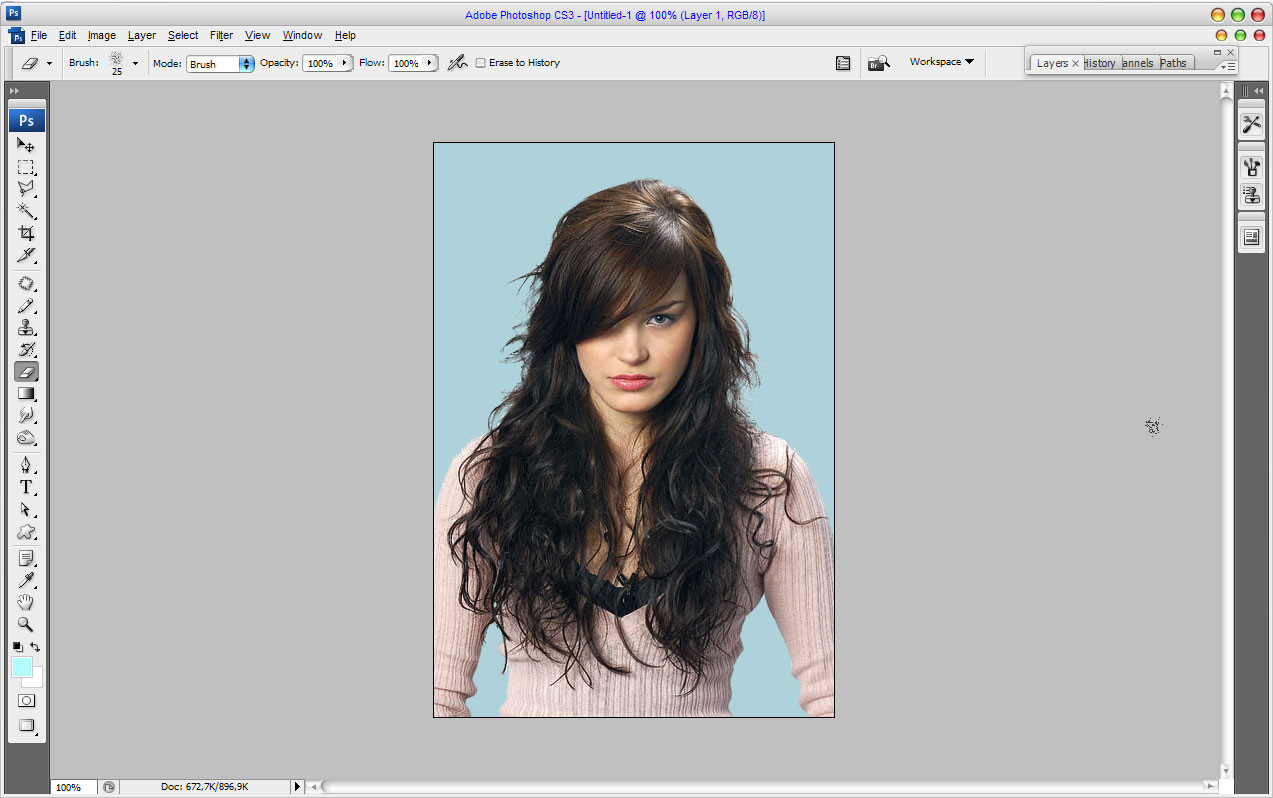
Separating Complex Objects from Background 07

Now, move to the next step. After processing problem areas with Eraser Tool we may have not so clear image parts, for example like we have from the left and right parts. For removing this problem select the Smudge Tool (Brush: 2 px, Mode: Darken, Stregth: 95%) and add a few strokes as shown on the picture below:

Separating Complex Objects from Background 08

Then increase the sharpness for these areas with Sharpen Tool (Brush: 60 px, Mode: Normal, Stregth: 30%).

Separating Complex Objects from Background 09

We are done on this step. Isolated picture looks nice and all parts of hear looks realistic. If you don’t have the same good results, just try to experiment to get the best results!

Separating Complex Objects from Background 10

No related posts.

Follow Photoshop Star

If you want to receive updates from PhotoshopStar, please consider subscribing our RSS feed. You can also follow us on Twitter or on our Facebook page.

If you prefer, you can also subscribe to our monthly Newsletter.

Share this Post

22 Responses to “Separating Complex Objects from Background”

  1. nice tutorial i like it…….

  2. labourous but informative

  3. How did you get the Extract… is it in the filter menu…because i can’t find it???

  4. Venkatesh Bashetty Reply July 23, 2010 at 9:46 pm

    Nice Tutorial…

  5. This is a very good technique but on this particular image you have a very simple background and you can use channels for a much quicker and accurate result.

    Anyways still a very good technique for the vast majority of PS users.

  6. very nice for simple colored backgrounds such as solid blue,white ect..

  7. The extract tool is no longer standard in CS4 but can be downloaded from Adobe.. sorry I don’t have the link :)

  8. coreetexcia if u use cs5 it dosent extract filter.sorry!!!

  9. this is crazzi can u do this on pic nik lolz

  10. nice as always..!!

  11. I am impressed by this simple but sophisticated method

  12. very nice for simple colored backgrounds such as solid blue,white ect..

  13. venkatesha madiwalar bangalore Reply November 10, 2010 at 11:32 am

    very nice tutorial

  14. nice bt cud be better

  15. I like it

  16. She is really pretty : )

  17. Nice tutorial, but an easier way is to create a mask and use the refine edge tools. You can get a better separation of subject and background with less tedious outlining work and it’s with a mask so its non destructive to the original image. Just in case you want to add some of that background back in later.

  18. Great tutorial, although the entire time I was trying to think up of an innuendo..

  19. I have Photo Explosion Deluxe and The Print shop, can I do any of this stuff with these?

  20. Your technique is very good and thank you because it is helpful

  21. thats off a simple blue background..part lets pull someone off an image with alot of background detail/colours…