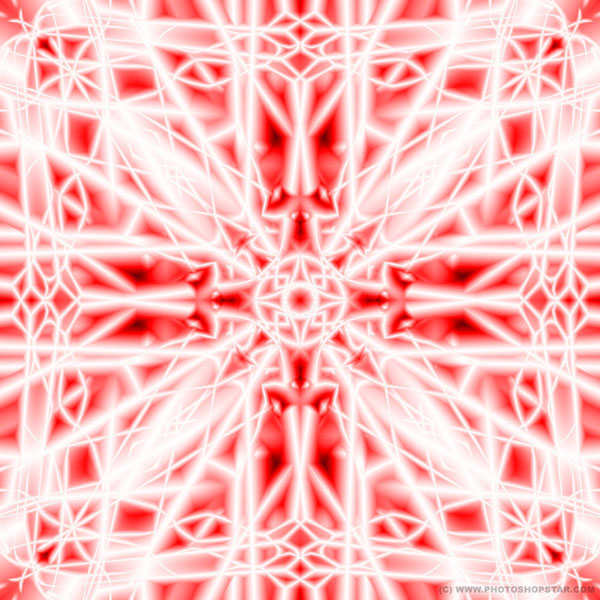
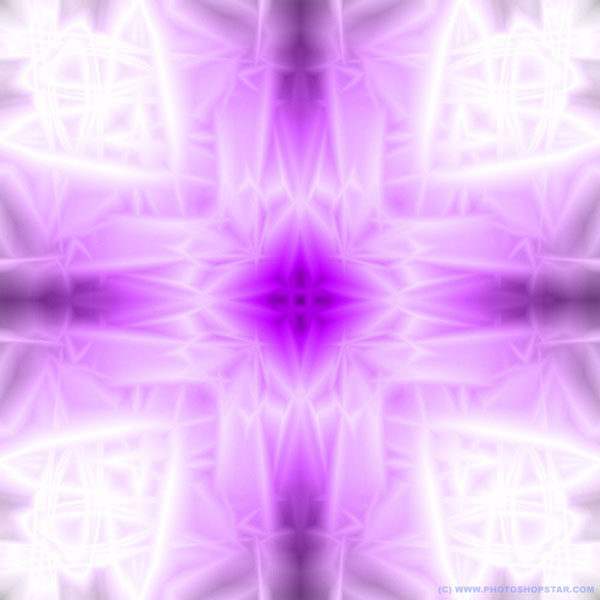
This Photoshop tutorial explains how to make a very beautiful abstraction. Every time you follow this tutorial results will be completely different but always very beautiful.
Final Image Preview
Step 1
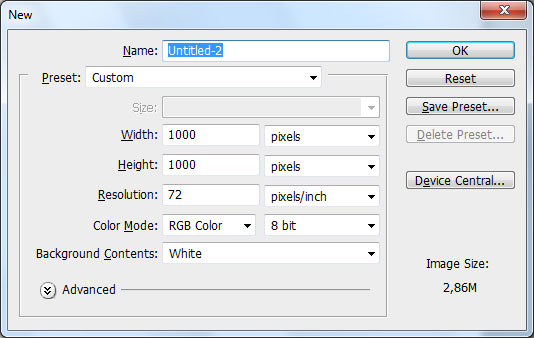
Create a new document with 1000×1000 pixels and background white. It is very important for this tutorial that the document has the same width and height.
Step 2
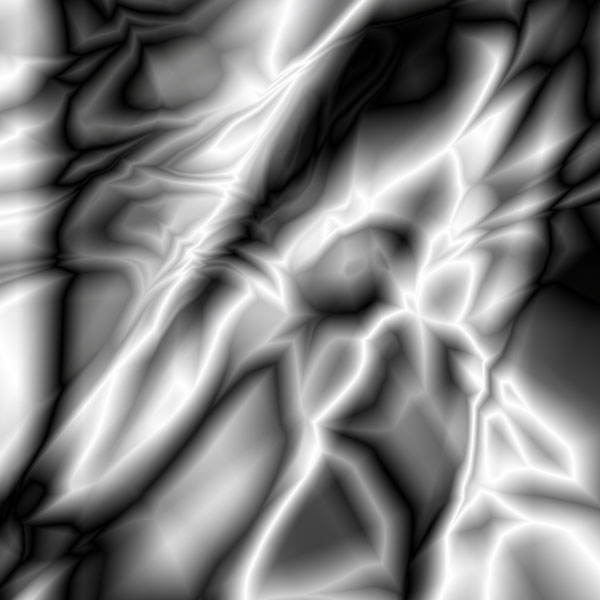
Then select the Gradient Tool, select black and white linear gradient (also you can use different kinds of gradient it does not matter) and set up mode to Difference, and fill our canvas with this gradient many times.

Step 3
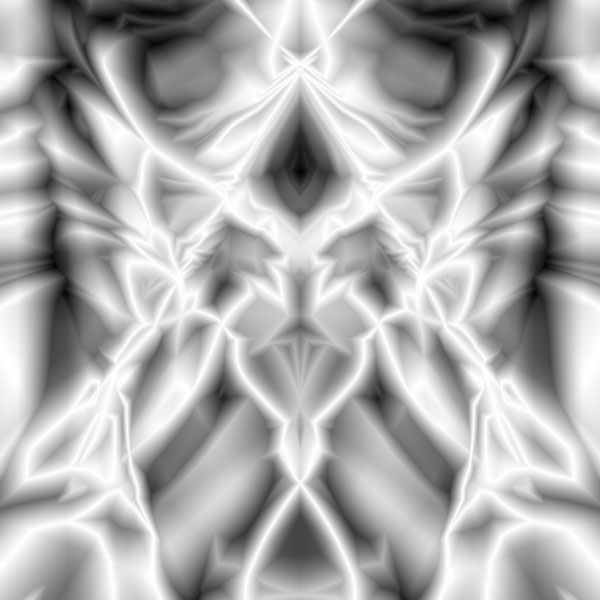
Now let´s apply transformation techniques for creating abstraction form. Duplicate this layer with Ctrl+J, after that flip it horizontal by using Edit > Transform > Flip Horizontal and change layer mode to Lighten for this layer.
Step 4
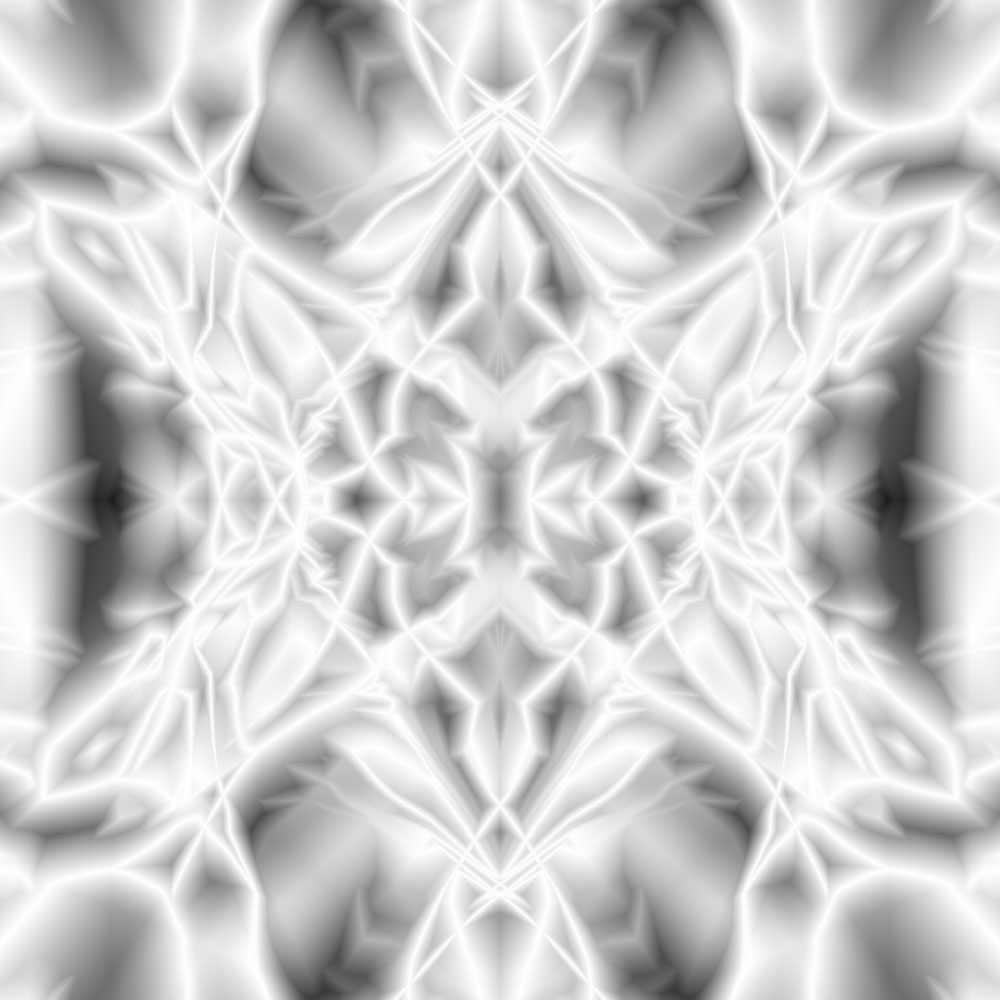
Go to Layer > Merge Layers (Ctrl+E) to merge both layers to one. Once layers are merged, duplicate layer with Ctrl+J again. Set up layer mode for copied layer to Lighten again and flip it vertical by using Edit > Transform > Flip vertical.
Step 5
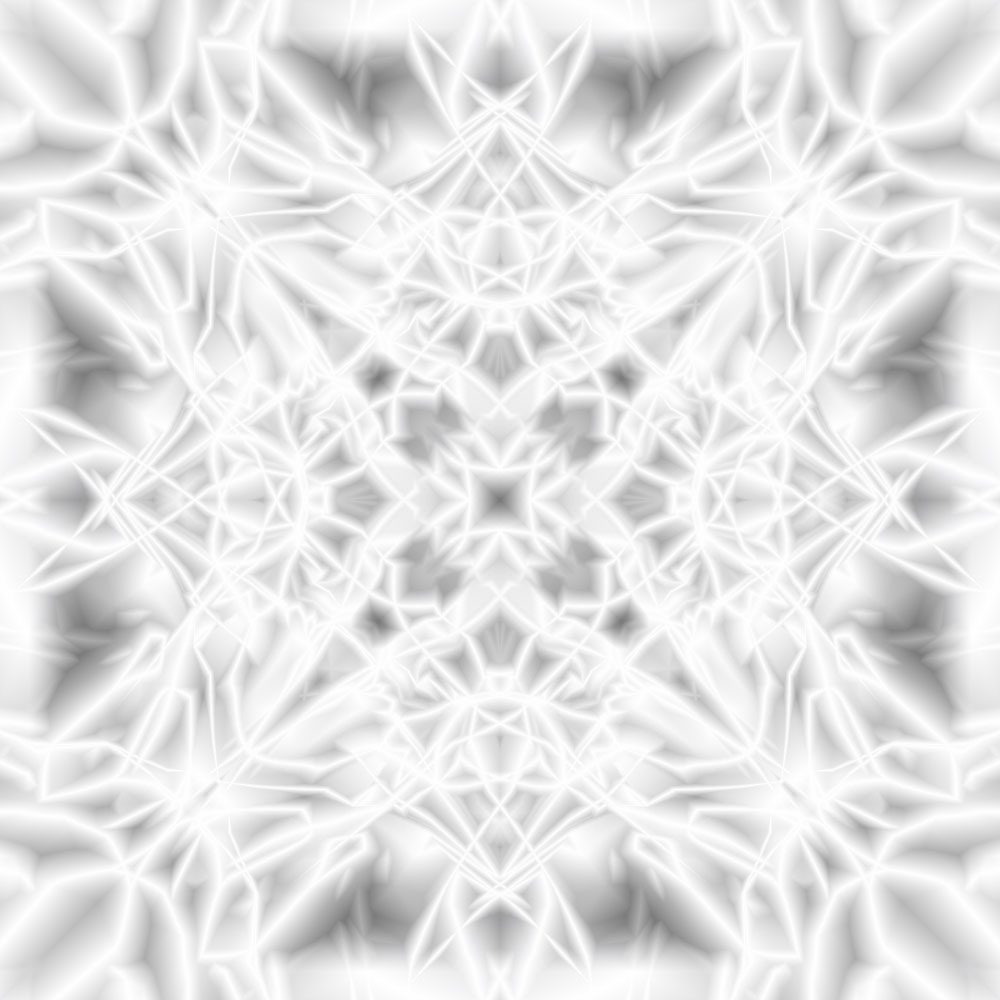
Merge both layers in one again (Ctrl+E) and duplicate copied layer one more time. Now rotate it 90 CW with Edit > Transform > Rotate 90 CW, change layer mode to Lighten for copied layer.
Step 6
Merge both layers in one again (Ctrl+E) and duplicate copied layer one more time. Now rotate it 90 CW with Edit > Transform > Rotate 90 CW, change layer mode to Lighten for copied layer. Finally, merge all layers into one.
Step 7
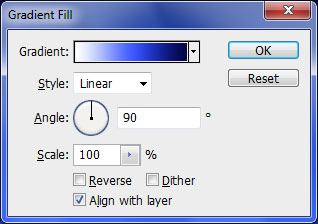
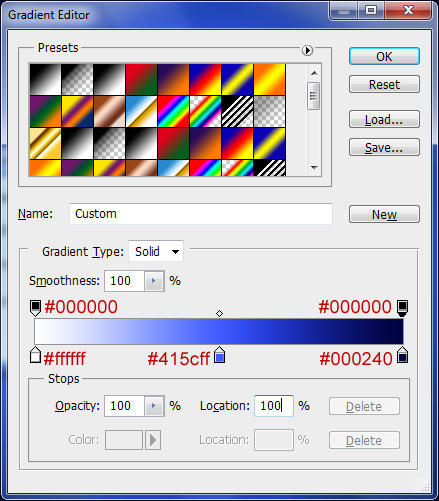
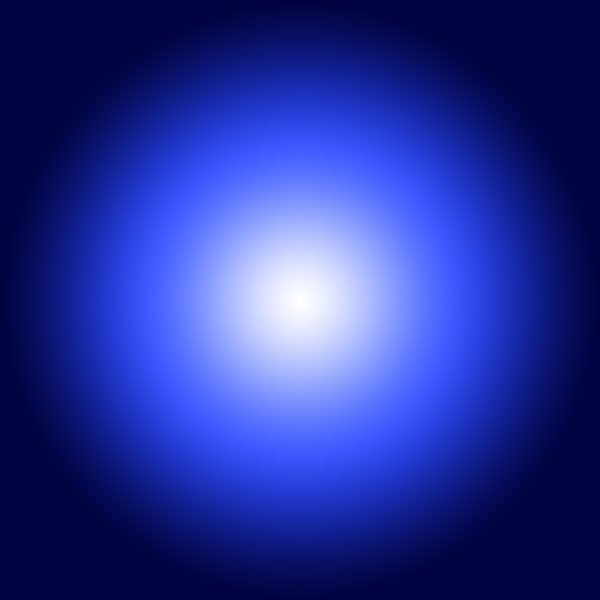
I would like to add the color to the abstraction. Choose Layer > New Fill Layer > Gradient and then click Ok. Use same colors as on my picture below and don´t forget to change Gradient Style to Radial.
Step 8
Change blending mode to Linear Burn for this gradient layer.
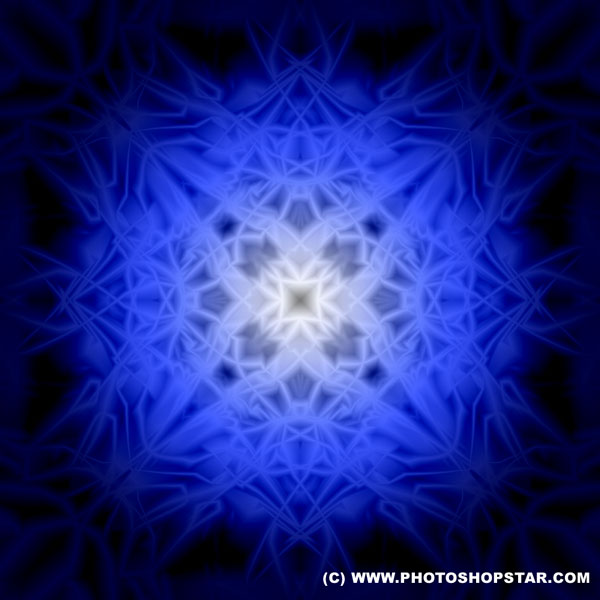
Final Image
You finished this tutorial! Looks very cool, isn’t it?
Creating additional abstraction variations
Making this tutorial many times and changing colors you can get completely different results: