
Advertisement
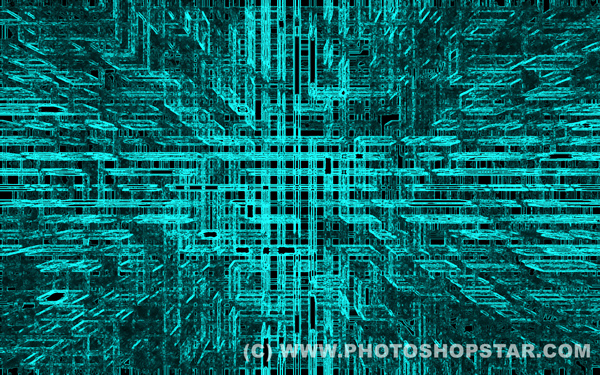
On this tutorial i am going to show how you can use filters to create wallpaper with abstraction in futuristic style.
Final Image Preview
Step 1
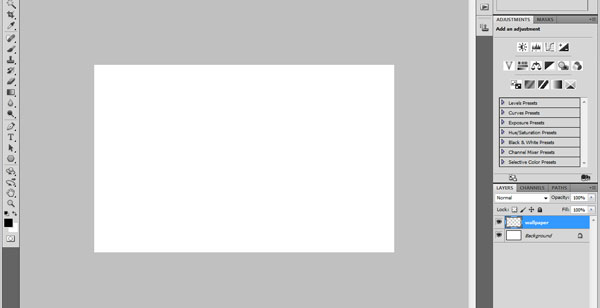
Create a new document with size of 1920 x 1200 pixels and 72 dpi with white background.
Press D to set up foreground and background colors black and white. Go to Layer > New Layer and create a new layer called “wallpaper”.
Step 2
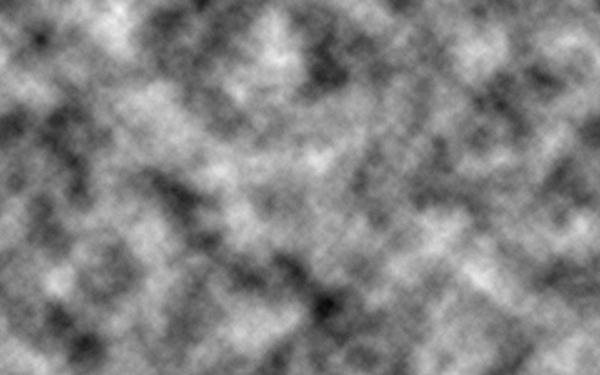
Now we are going to work with filters on this new layer to create our wallpaper. To start, go to Filter > Render > Clouds.
Step 3
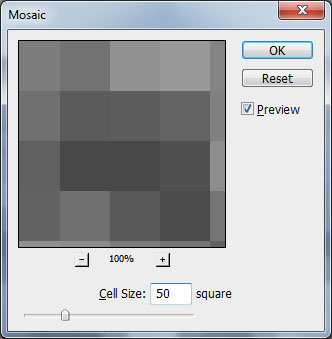
After that apply Filter > Pixelate > Mosaic with following settings:
Step 4
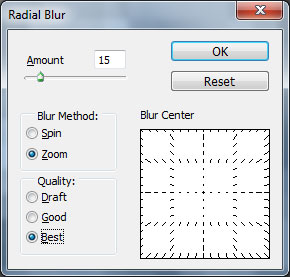
Apply Filter > Blur > Radial Blur with next presets:
Step 5
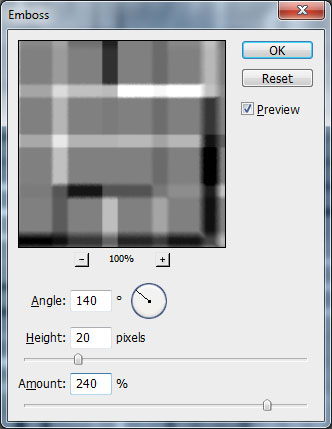
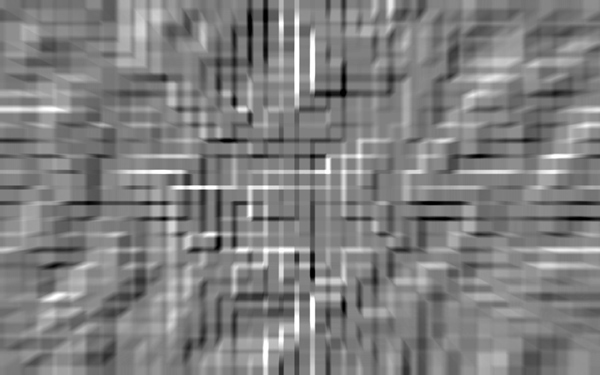
Then apply Filter > Stylize > Emboss:
Step 6
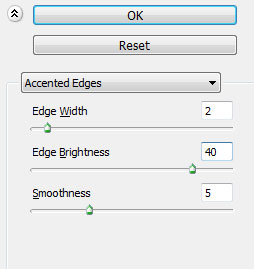
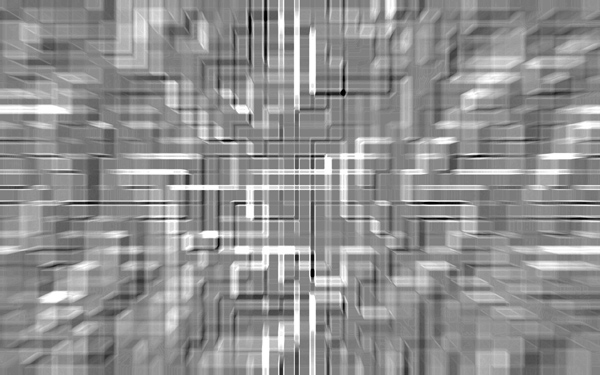
After that use Filter > Brush strokes > Accented Edges:
Step 7
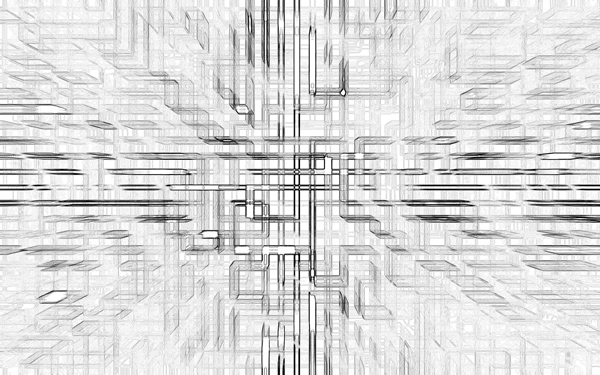
Now apply Filter > Stylize > Find Edges:
Step 8
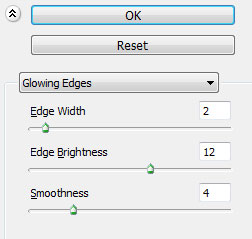
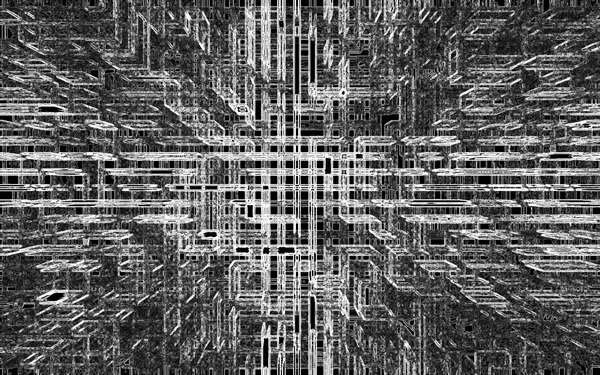
And finally apply Filter > Stylize > Glowing Edges with these settings:
Step 9
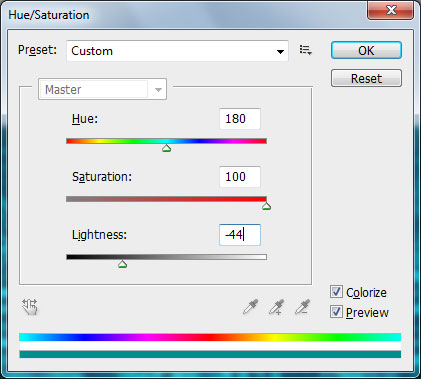
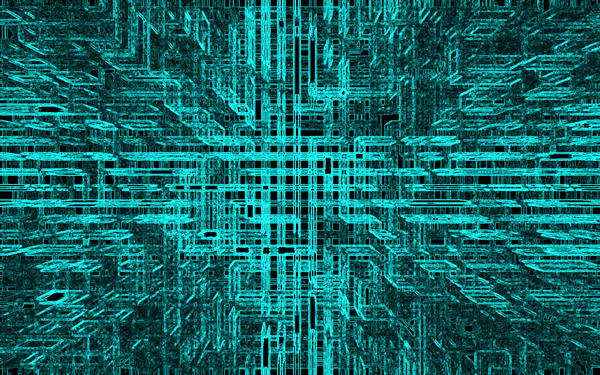
The last thing that we have to do is to change color of our abstraction. For this effect use Image > Adjustments > Hue/Saturation:
Step 10
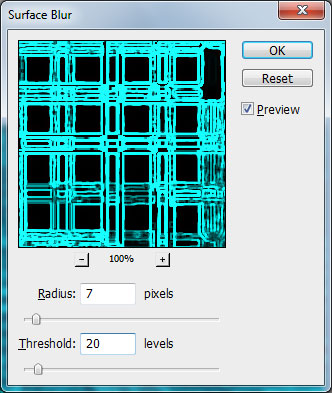
Remove sharpness a little bit by using Filter > Blur > Surface Blur:
Final Image
And that’s it. We have a wallpaper with abstraction in futuristic style.

No related posts.

August 31st, 2010 in


amazing,good start.
very simple and realy nice tutorial.. i like this..
Nice tut for making backgrounds
Very clever idea!
very simple and good idea
thanks very much
we need more tutorials from this website.. PhotoshopStar.com doing realy good job.. keep it up..
I really love this one
very good
I expected something better .. this is boring, do not think it best
Thanks for your sharing. Very nice tutorial!
It’s the best and non complicated tut for creating an abstract wallpaper..
TY,
very nice
Good tutorial, thank you!! XD
I really like the background effect. I only have one suggestion. I started by creating a smart object; I was able to use all the filters except for Hue and Saturation which becomes a seperate layer. Then, you can tweak each filter without starting from scratch.
This background reminds me of the “Tron” movie.
Thanks.
great tutorial really enjoyed it it was fast and easy
nice man
Great tutorial! Glad to see this site is up and running again! Great start…looking forward to more.
great….keep it up
love this very much
very nice.thabks
Good tutorial, thank you!! XD
Wow.. I loved this, playing with filters and creating a wonderful image
Thanks for writing, I very much liked
nice tutorial……thanx
Thanks….a lot!!!… It is very helpful & easy for our learners….
very nice way to creat wallpapper! keep it up———-
it’s simple, . but nice.,
this is very good site… put more tutorials in this website plz
easy and has many applications through color changes.
good one.. reli useful..
Thank you very much!
Really very simple & useful!
Nice combination & use of filters!!
Thank You…
This is very easy to understand,
and very use full.
Damn, this is awsome
It is very nice.
Thankyou
loved it!!! thank you..
good, thank you so much.
cool!!!!
yaaaa nice but not that much…….
Worked at home but not in class. Scratch Disks where full :/ crappy computers at school.
easist tutorial ever!
Maybe add instreuctions to change the color of the wallpaper, but that shouldn’t be too hard to figure out
Thanx
does adobe photoshope 3 working??
i’ve been trying for several times but it doesn’t work
very easy instructions and a great final result
a nice and a great bit of work….
WOW good and easy thnk
tutorial sucks… followed step by step and the hue and saturation are greyed out and cant be added.
Did you clicked on colorize option? I think that was the problem.
It is a great resource. Thanks for sharing.
followed instructions, can’t use brush strokes in PS cs5. don’t why
john, check if you’re doing something wrong before criticizing someone else. did you click the colorize checkbox?
this tutorial is very good
Awesome!! Loved it! It works like a charm, and left lots of room to experiment with filter and hue settings as well!
It’s very easy and simple. thanks a lot
its a not easy way its call creativity
Hi, thanks for the tut. It was really easy to understand and easier to follow it up. Great work.
Nice One.. Thanks..!!!
sweet mine works at scholl for fun i thought id look a tutorials and well im impressed with this site and i love it
how awesome was that.
thnx from ksa
I love this i worked in class and my teacher liked it
Thanks so much
~Aly
Like This Tuto SO Much
It RoCkss
Wow, cool…
surreal … thanks for this wallpaper tutorial
just great !
thanks for the wallpaper tutorial
nice and easy tutorial
Thanks for the tut! It was fun, and easy.:)
I have an idea for this.
At the colorization, use Gradient tool>Spectrum and change blending mode to Overlay for gradient. You can use different gradients, but whatever. And apply the gradient horizontal, vertical, Radar style, Reflected style, or whatever you want to use.
Best wishes to all!
Wow great! Easy to follow and excellent result!
Really this is unbelivable really I am so impressed and it is very easy …..
Super easy, only took me a few mins, great tutorial
That’s so easy and COOL….
i is very simple way 2 create a background i really like this i want some more backgrounds like this any way nice tutorial